Managing bank accounts

How to add and name a bank account
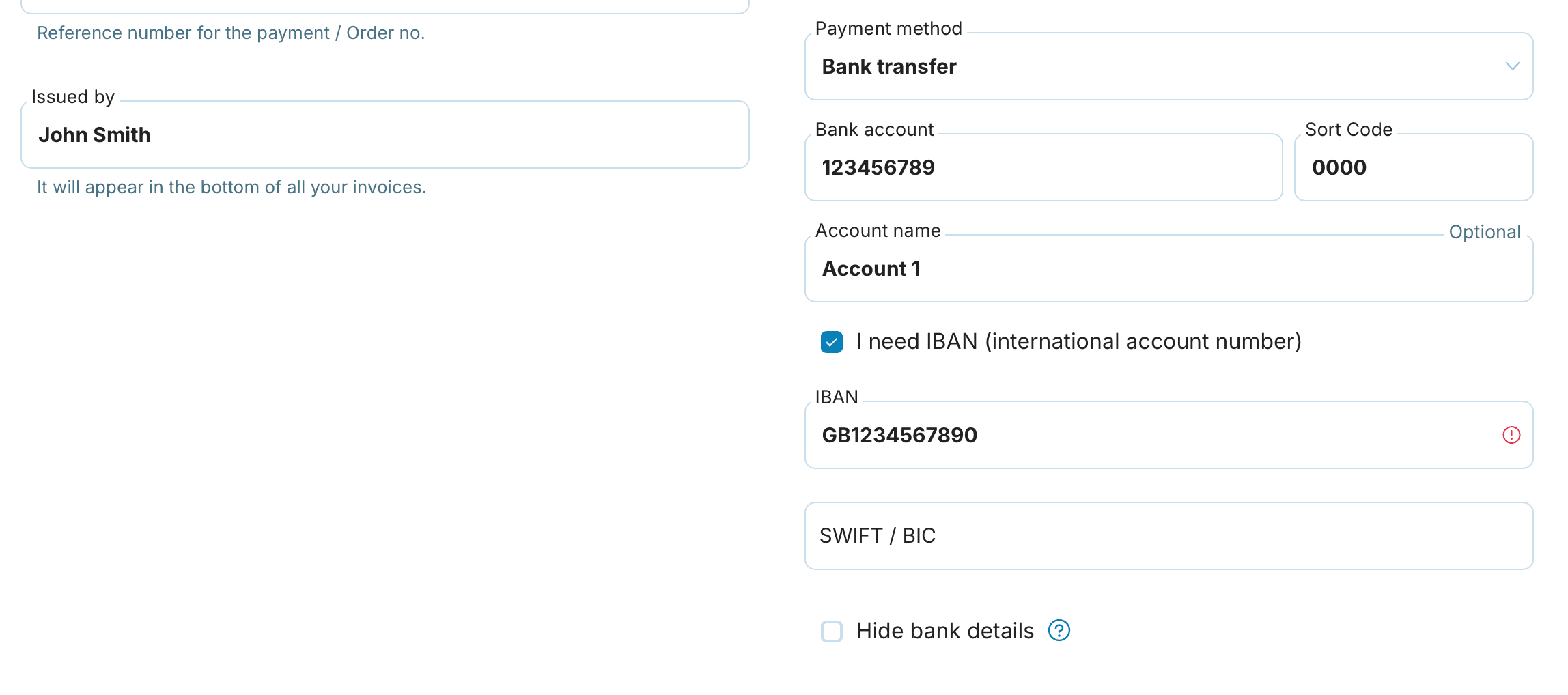
Bank accounts are added directly from the invoice form when issuing it. While filling in the payment details, you have access to the Bank account field and below it, an optional Account name field.
The process is simple:
Open the form for issuing a new invoice.
In the payment details section, fill in the Bank account.
In the Account name field, write any name (e.g., "Main account", "Euro account", or "Client XY's account"). This field is optional.
If needed, tick the I need IBAN checkbox and fill in the IBAN and SWIFT code. You'll find the full walkthrough in our guide on issuing an invoice for a foreign account.
Save the invoice — the account will automatically be saved for future invoices.

Selecting a bank account when issuing an invoice
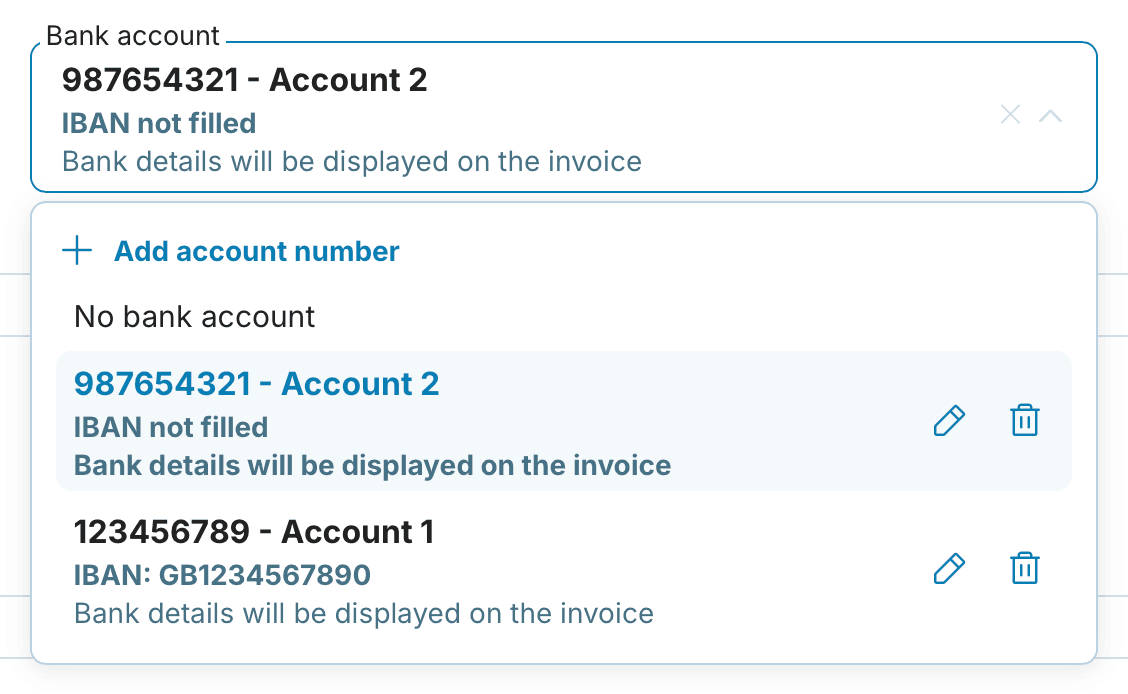
Once you have saved at least one account, a dropdown menu Bank account appears in the payment details section on the next invoice. Simply click and select from the list of saved accounts.
In the menu, you will see:
Bank account and its name (if entered)
Information on whether IBAN is filled in
Option No bank account — if you want to issue an invoice without bank details (for example, for cash payment)
Option + Add bank account to insert another new account


Practical example:
Do you work with both UK and international clients? You can save „GBP account – Barclays" for domestic invoices and „EUR account – HSBC" with your IBAN and SWIFT code for international clients. When invoicing, simply select the right one. When invoicing, simply select the right one — and switch to invoicing in a different currency when needed.
Editing and deleting saved accounts
Each account in the dropdown menu has two icons:
Pencil — opens the window for editing the account (number, name, IBAN, SWIFT)
Bin — deletes the saved account from the list
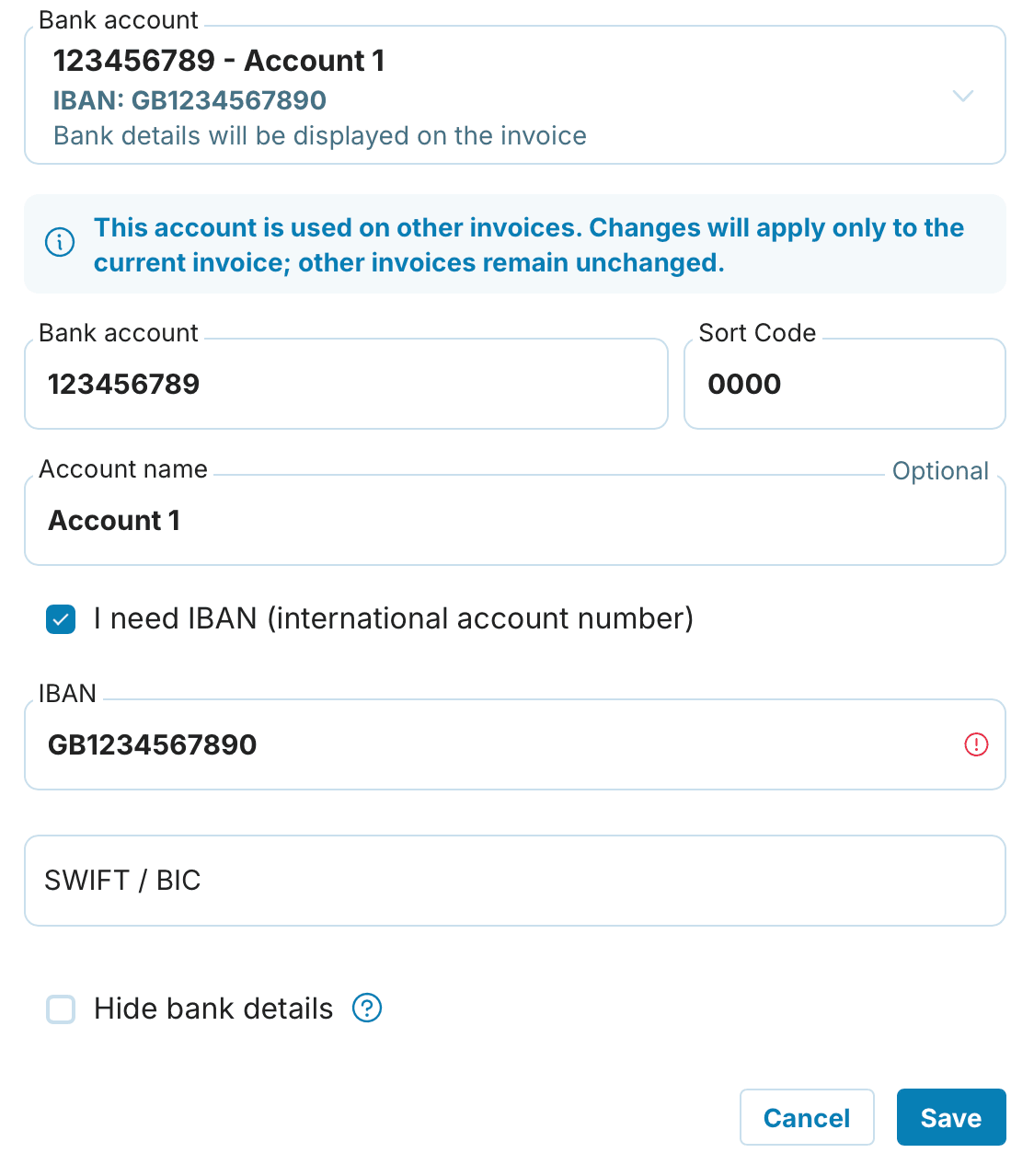
When editing an account that has already been used on previously issued invoices, a warning will appear that the change will only affect the current invoice in progress. Previously issued invoices remain unchanged to maintain the audit trail and original documents.

Hiding bank details on a specific invoice
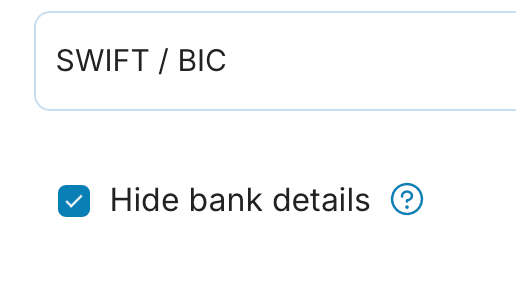
For each account (or directly in the invoice form), there is an option to Hide bank details. Once ticked, the bank details do not appear on that particular invoice — useful when:
The client pays in cash or by card
You're issuing an invoice to be paid by other means than transfer
You provide bank details separately from the invoice
Recommendations
Choose short, descriptive names — bank, currency, or account purpose
Always fill in IBAN and SWIFT codes for foreign payments
Check that the correct account is selected before saving the invoice
How many bank accounts can I save?
There is no limit to the number of bank accounts you can save. You can have as many as you need for your business.
Will the account name be shown on the invoice to the customer?
No. The account name (for example "Main account") is for your use only, to help you navigate the application. On the issued invoice, the customer will only see the account number, or where applicable the IBAN and SWIFT code.
What happens to old invoices if I delete or edit an account?
Previously issued invoices will remain unchanged. Any edits or deletions will only apply to newly created invoices, or to an invoice currently being drafted.
Can I have multiple accounts in different currencies?
Yes. We recommend giving each account a suitable name (for example by currency or bank), so you can easily find the right one in the menu. For foreign accounts, don't forget to fill in the IBAN and SWIFT code.