Invoice Template Google Sheets
Google Sheets is a free alternative to Excel that runs directly in your browser. Thanks to formulas and automatic calculations, it's better suited for invoicing than word processors – but it's still not an invoicing tool. We'll show you what an invoice in Google Sheets must include, where the limitations are, and why more and more business owners are choosing online invoicing instead.


What must an invoice include?
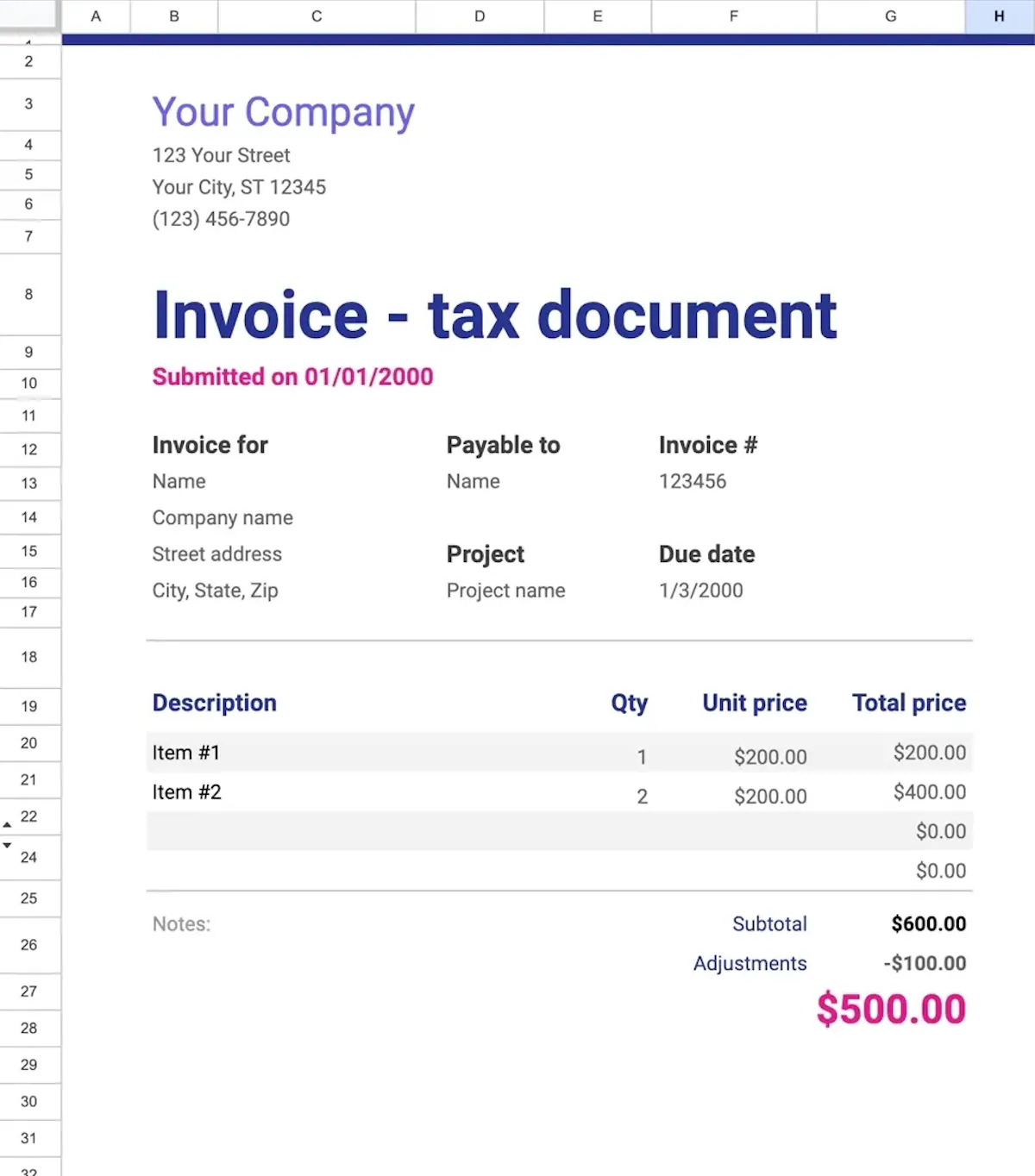
Whether you create your invoice in Google Sheets, Excel or a word processor – the legally required elements are always the same. Without them, the document isn't valid and the customer has every right to reject it.
Required invoice elements
Required elements
Invoice number – a unique number within your numbering system (e.g. "Invoice No. 20250025").
Seller details – your business name (or full name if you're a sole trader), registered address, and company registration number. VAT-registered businesses must also include their VAT number.
Buyer details – the customer's name, address, and company or VAT number where applicable.
Invoice date – the date the invoice was created.
Supply date – the date the goods were delivered or the service was provided (also known as the tax point), if different from the invoice date.
Description of goods or services – item name, quantity, unit price and line total.
VAT rate and amount – the applicable VAT rate, the net amount, the VAT amount and the gross total.
Total amount due – the sum of all items, broken down into net, VAT and gross.
Recommended elements
Payment due date – the deadline by which the customer should pay.
Payment details – bank account number, sort code (or IBAN for international payments).
Payment method – bank transfer, card payment, or other accepted methods.
Purchase order number – if the customer provided a PO number, including it speeds up payment processing.
What to watch out for when invoicing in Google Sheets
Google Sheets has the advantage of accessibility and collaboration over Excel, but when it comes to invoicing it brings its own set of problems:
Rounding and number formats – just like in Excel, automatic rounding can cause penny differences, especially on VAT invoices. Check the cell format and the number of decimal places.
Sharing = risk of changes – if you share the spreadsheet via a link, anyone with access can overwrite amounts or delete rows. And unlike a local file, you might not even notice.
Dependent on internet – without a connection, you can't access your spreadsheet. Offline mode does exist, but it needs to be enabled in advance.
Manual numbering – Google Sheets doesn't check whether you've already used an invoice number. You have to spot duplicates in your sequence yourself.
Layout isn't built for printing – what looks tidy on screen often falls apart when exported to PDF. Setting up the print area and margins takes more time than you'd expect.

Important!
Never send an invoice as a link to a Google Sheet. The recipient can change the details – and version history won't help if you don't notice the edit. Always export to PDF (File → Download → PDF).
With MyInvoiceOnline.co.uk you don't need to worry about formatting or sharing. Every document is automatically generated as a PDF that the recipient cannot alter. All your invoices are stored in the cloud and accessible from any device – with no risk of loss, overwriting, or broken formatting.

Invoice templates for Google Sheets
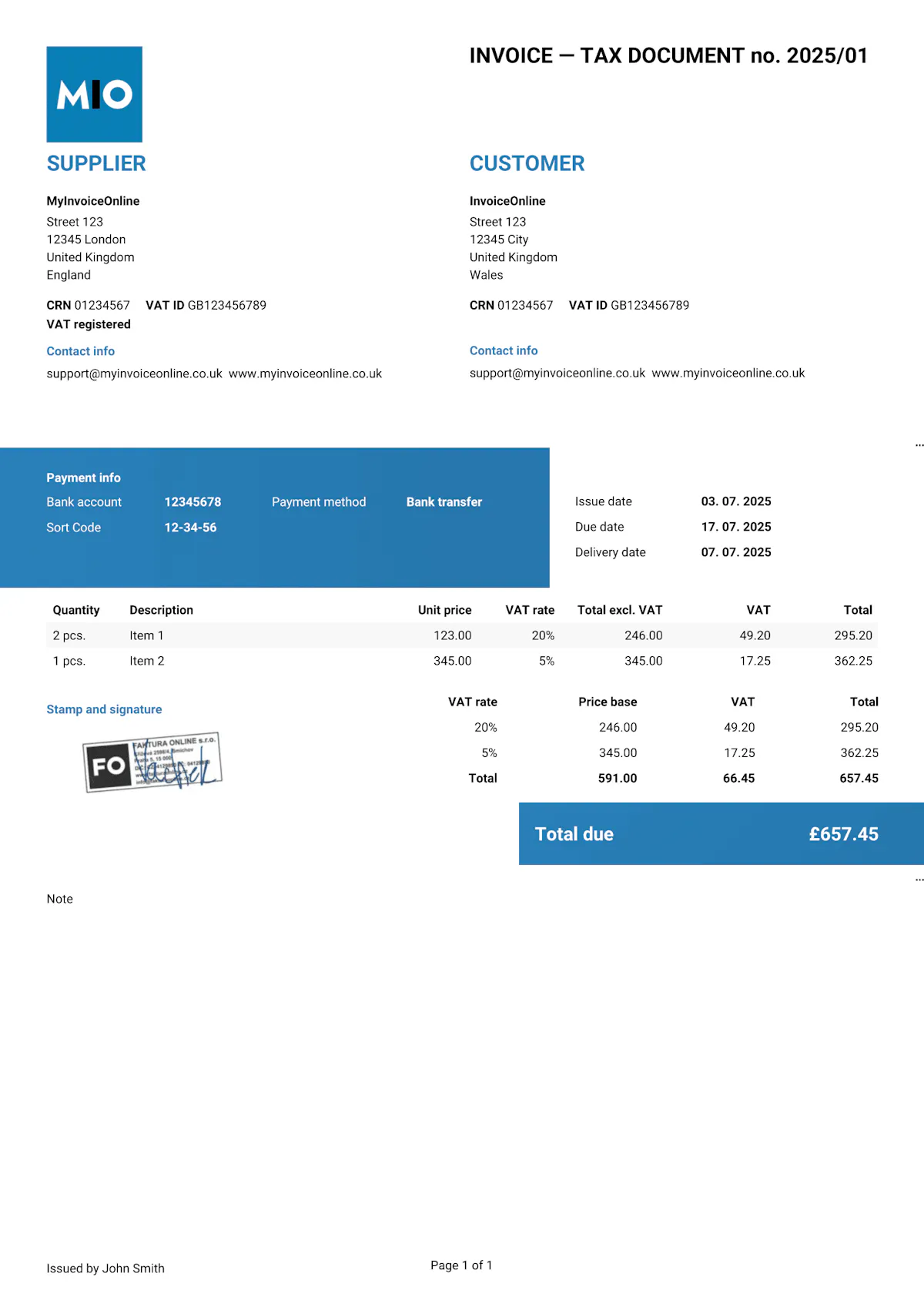
Invoice like a professional.
Your customers will see that your invoice matches your brand.
Add your logo, brand colours or stamp in just a few seconds. Editable templates are easy to customise to suit your needs.

Your logo on every invoice
Upload your own logo and make every invoice look professional and truly yours.

Your brand colours
Choose your brand colours so your invoices stay consistent with your business identity.

Add your stamp
Need a company stamp on your invoice? Just upload it – it will appear automatically in the right place.