Activating Two-Factor Authentication for Security

An Introduction to Two-Factor Authentication
Should you rely solely on a password for MyInvoiceOnline, you might leave yourself exposed to potential security breaches. If, for example, your login details are leaked from another site where you've used the same credentials, someone else could gain access.
Two-factor authentication (2FA) strengthens security by requiring an additional step after entering your password. This involves inputting a code sent exclusively to your phone, ensuring only you can log in, even if someone else knows your password.

Before enabling 2FA, we recommend making sure you have a strong and unique password — if you'd like to change it, follow our guide on changing your login details.
Choosing Your 2FA Method
MyInvoiceOnline provides two distinct ways to secure your account. Both are dependable, differing mainly in how the security code is delivered to you.
SMS codes are sent directly to your phone after password entry. This code is simply entered for access, requiring no extra apps, just standard text capabilities.
With an Authenticator App, the security code is generated on your phone using apps like Google Authenticator, Authy, or Microsoft Authenticator. This code, refreshed every half-minute, functions offline.

Deciding Between SMS and an App?
SMS setup involves just your number. The app offers a bit more safety since the codes aren't transmitted over mobile networks. In either scenario, your account's security is significantly bolstered.
Setting Up SMS-Based 2FA
Sign into MyInvoiceOnline.
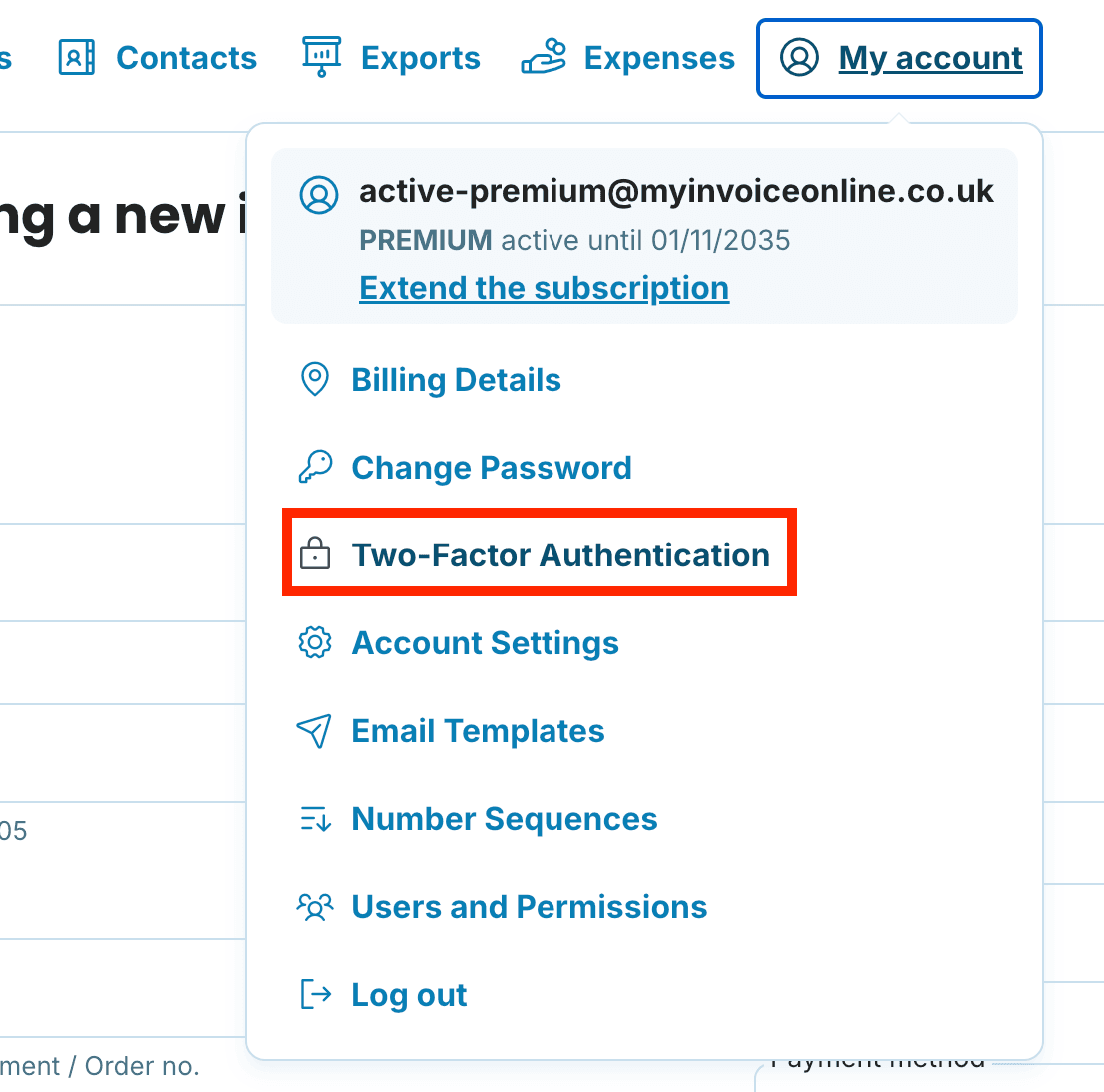
Navigate to the My Account menu option.
Locate the Two-Factor Authentication area.
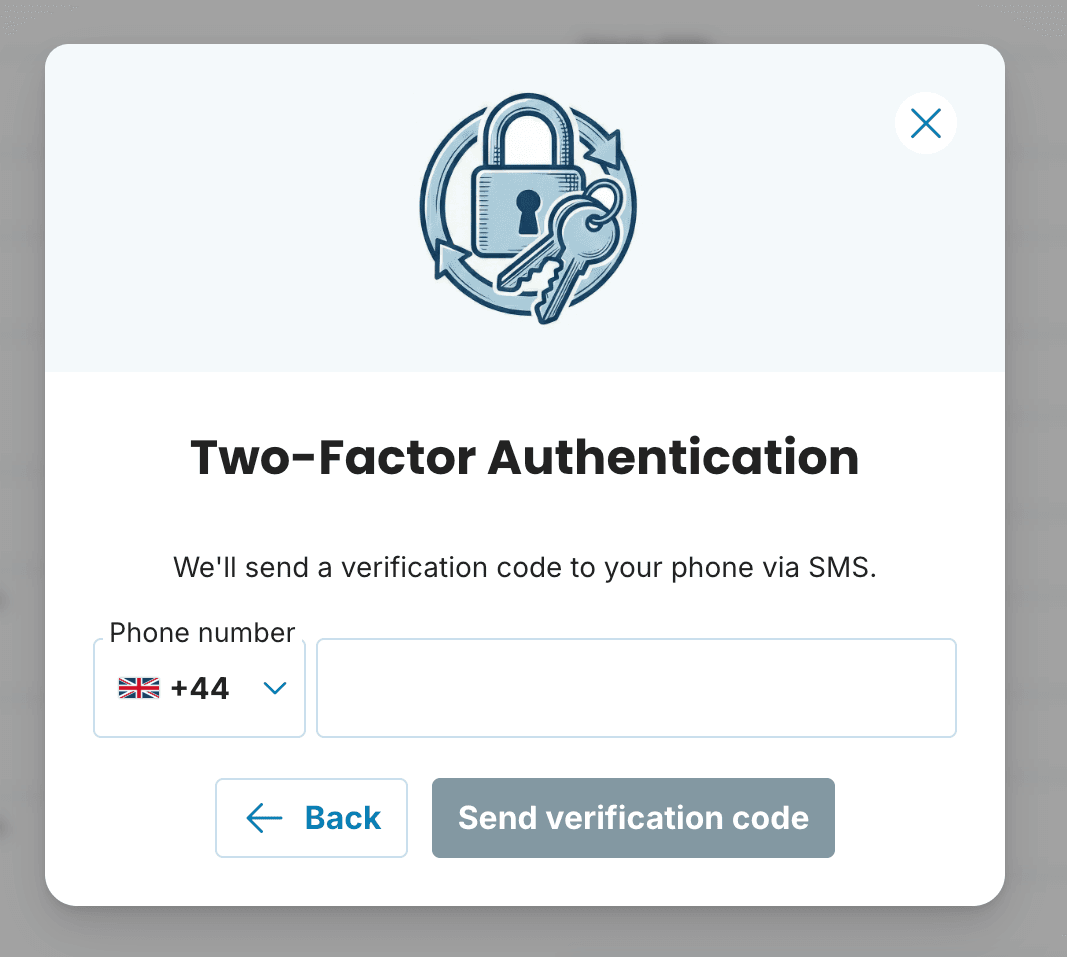
Choose the SMS method and click Set up Verification.
Provide your phone number and click Send verification code.
Input the six-digit code received via SMS in the designated field.
Confirm the setup, and you'll be prompted for this SMS code in future logins post password entry.
Using an Authenticator App for 2FA
If an authenticator app isn't installed, consider these free options available on both Android and iPhone:
Google Authenticator
Authy — this option also allows device backups and synchronisation
Microsoft Authenticator
After downloading an app:
Log into MyInvoiceOnline.
Select My Account → Two-Factor Authentication.
Choose the Authenticator App method and hit Set up Verification.
Scan the QR code on screen through your phone's app (or enter a code manually).
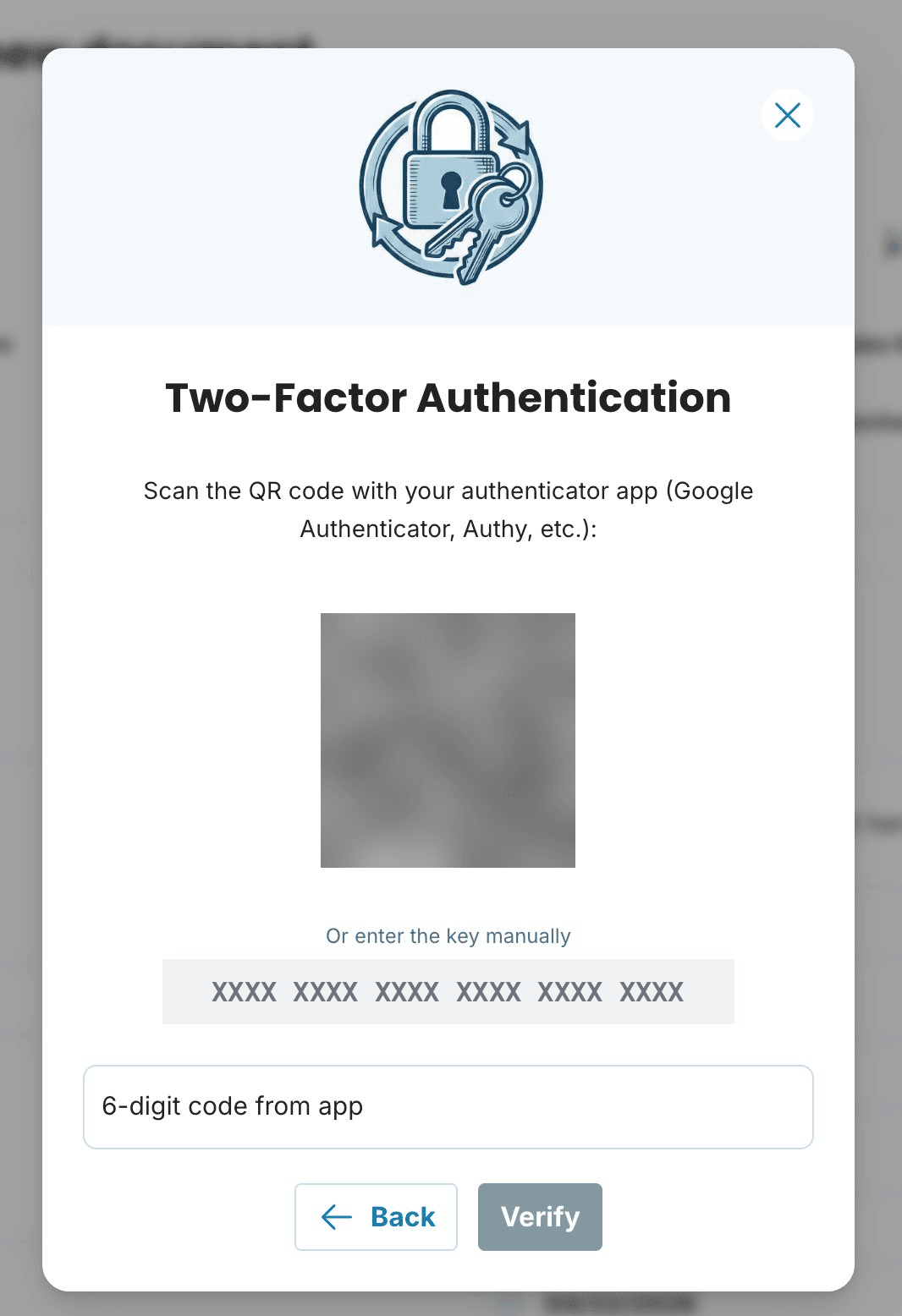
Input the six-digit code, shown on your app, into MyInvoiceOnline, which updates every 30 seconds.
Confirm activation. For subsequent logins, this app code will be required.
Backup Codes: An Essential Reserve
When 2FA is active, 8 backup codes are generated for you. These codes serve as alternatives should you lose phone access, such as when it's misplaced or damaged.
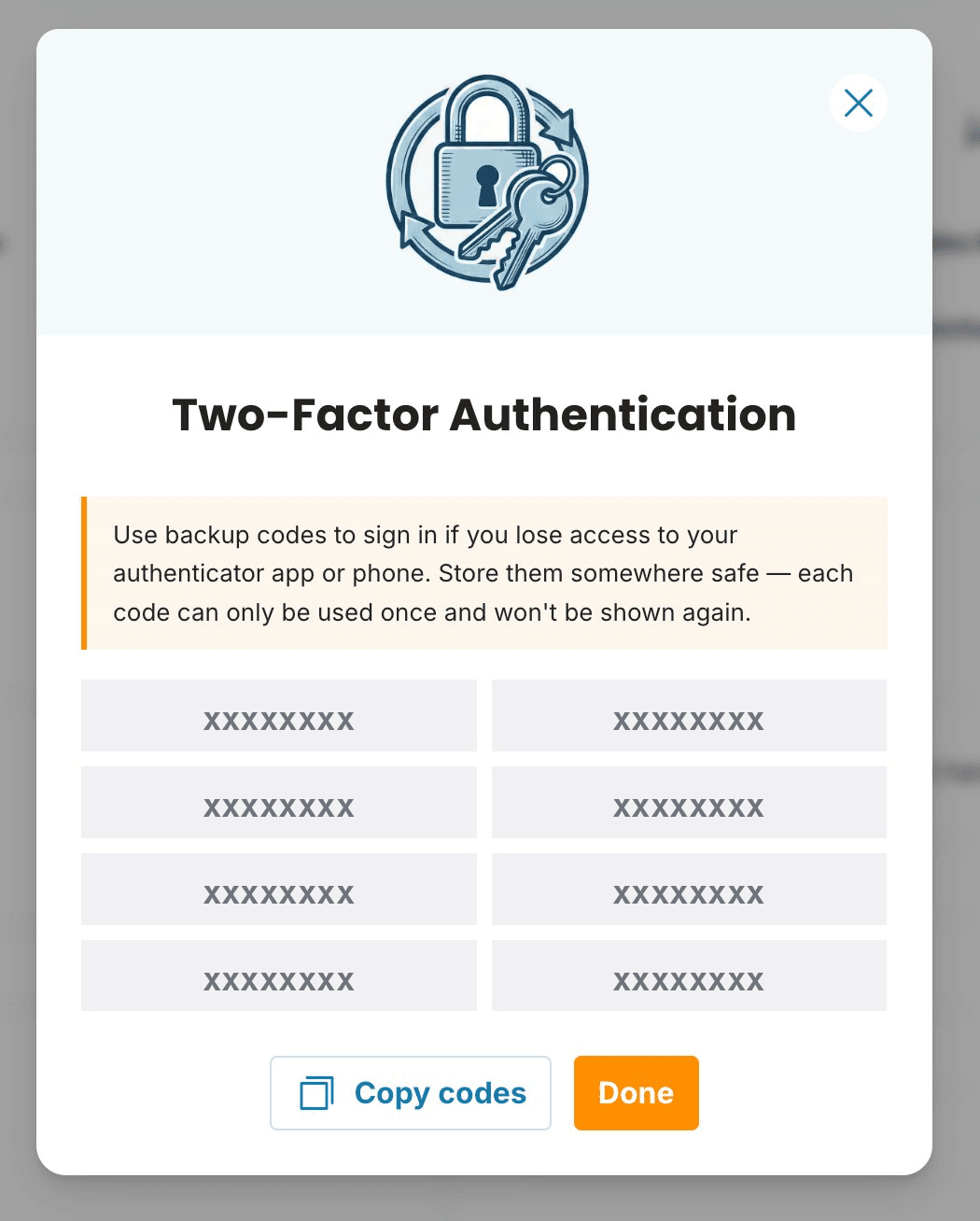

How to Save These Codes:
Receive 8 backup codes post-2FA activation.
Click the button to copy all codes simultaneously.
Store them safely — in a password manager, as an encrypted note, or print for secure physical storage.
Lost your password too? Follow our Forgotten password guide and reset it within a few minutes.
Understanding 2FA Login Process
Logging in involves an additional quick step:
On the login page, enter your email and password.
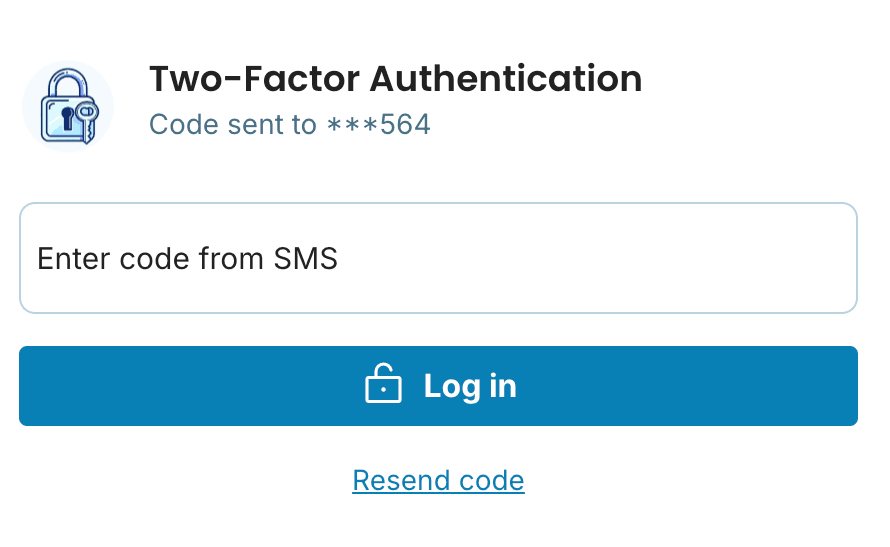
The system requests a one-time security code.
Provide either the SMS code or the app-generated code, depending on your setup.
After code submission, access is granted.
If phone access is unavailable, input a backup code instead — an option provided during login.
Switching Off 2FA and Reissuing Codes
Turning Off 2FA
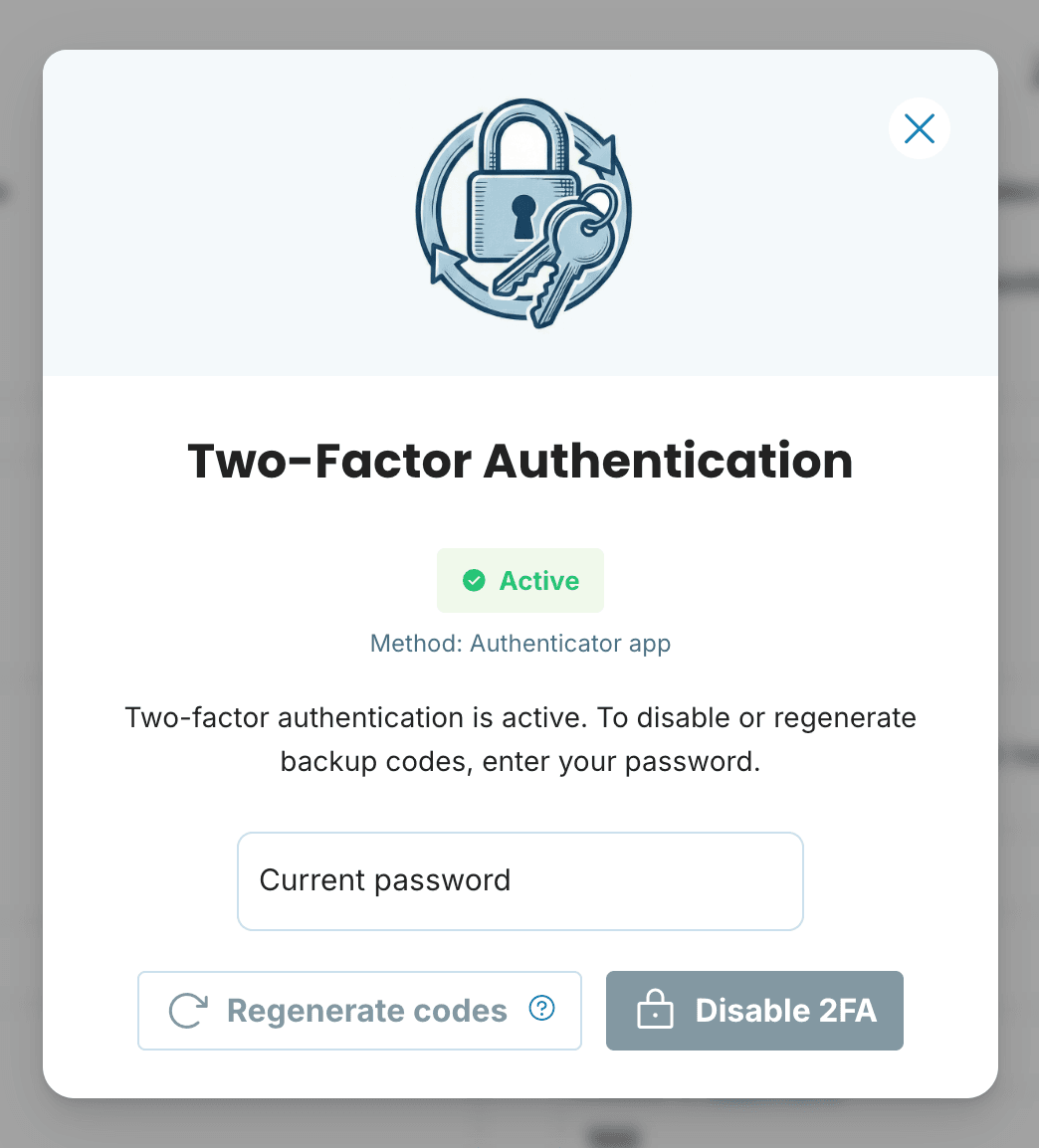
To remove two-factor authentication, follow these steps:
Visit My Account → Two-Factor Authentication.
Press Disable 2FA.
Verify by entering your current password.
After this, login requires only your password.
Regenerating Backup Codes
If codes were lost or consumed, or you wish to generate them anew:
Access My Account → Two-Factor Authentication.
Opt to create new backup codes.
Confirm using your current password.
New codes are produced, cancelling previous ones.
Store the new set safely at once.

Is two-factor authentication mandatory?
No, this feature is optional but recommended for enhancing security significantly.
Applicable on all plans?
Yes, whether you're on Mini, Premium, or trial, 2FA is available.
Additional cost involved?
No, all plans include 2FA without any charge.
SMS not received, what next?
Verify your phone number in settings. Wait a minute, then attempt another code send. Check for SMS block by short numbers in your phone settings.
Authenticator app issue
Check if your phone's time is correct—codes are time-specific. Enable automatic time in settings.
Switching between methods?
Yes, by disabling current 2FA (needs password) and enabling the alternate method.
Both SMS and app usage?
Currently, it's one method at a time. Switch by disabling and re-enabling as required.
