Managing Contacts with MyInvoiceOnline
Where to find your contacts
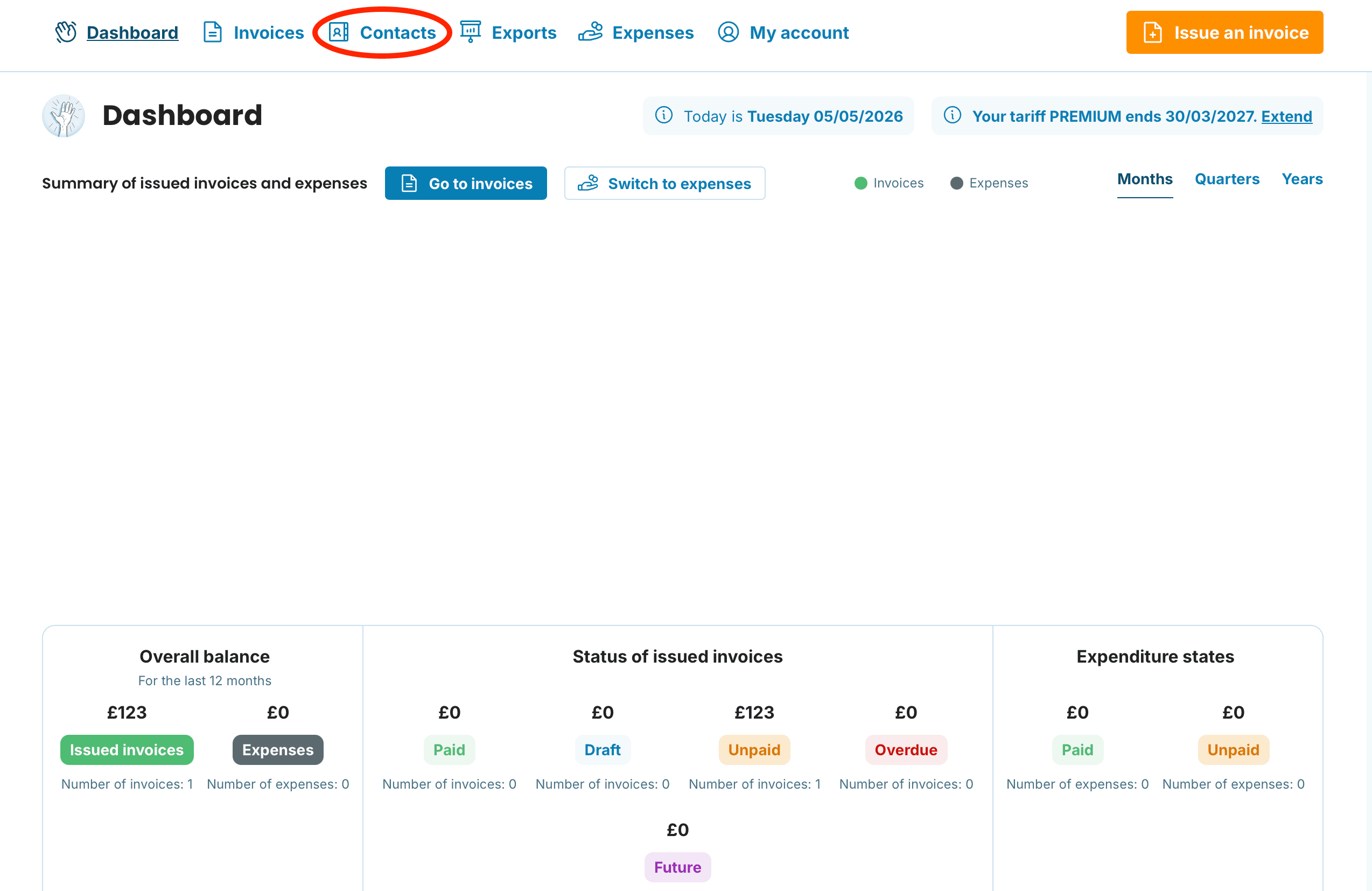
You will find the Contacts section in the top menu once you have logged into the application — and it is available on every plan.
How to add a new contact
There are two ways a contact can be added to My Invoice Online:
Automatically — whenever you issue an invoice to a new customer, their details are stored in your contact database without any extra steps.
-
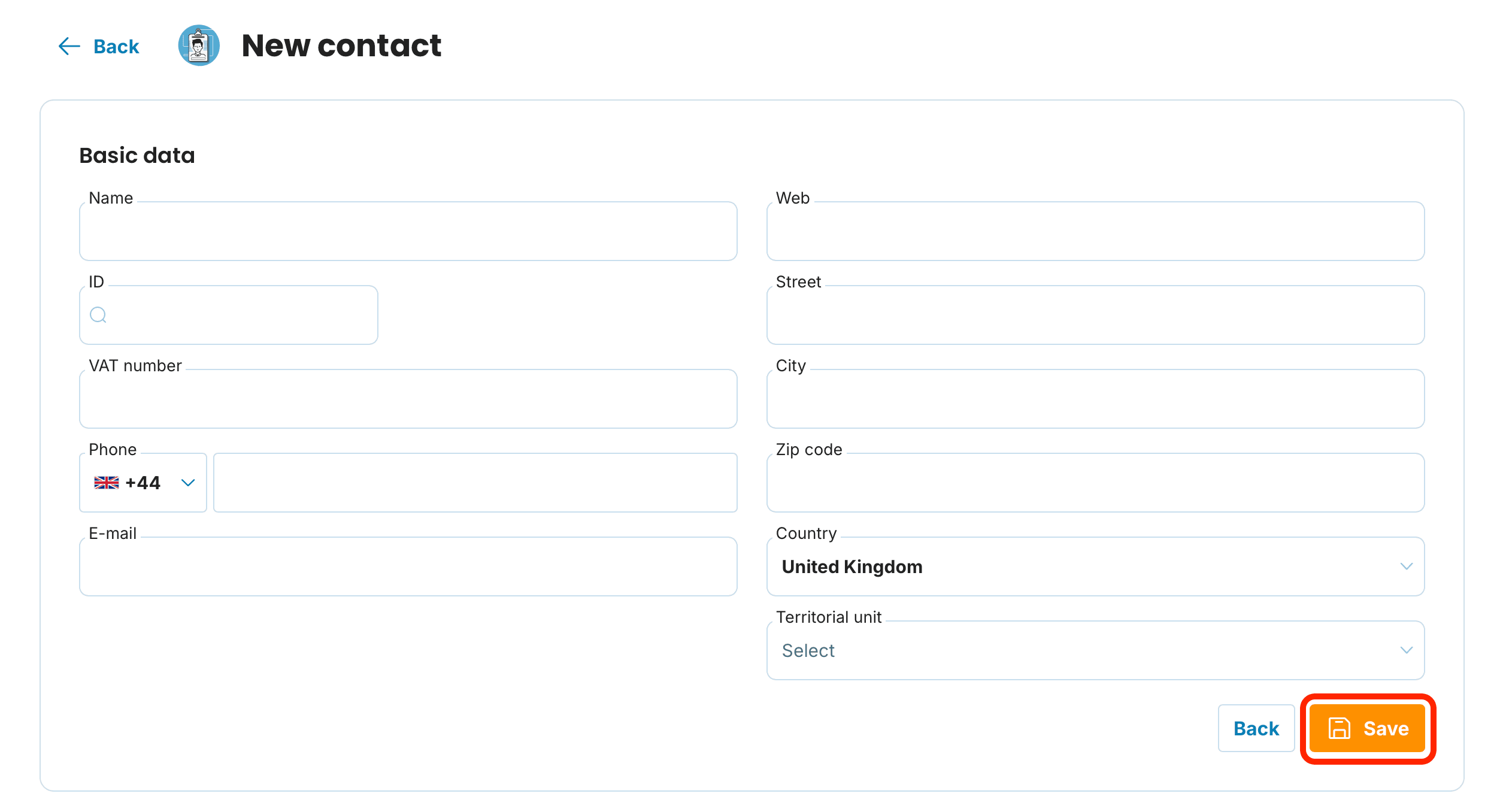
Manually — you can also add a contact without issuing an invoice. Here is how:
Open the Contacts section in the top menu.
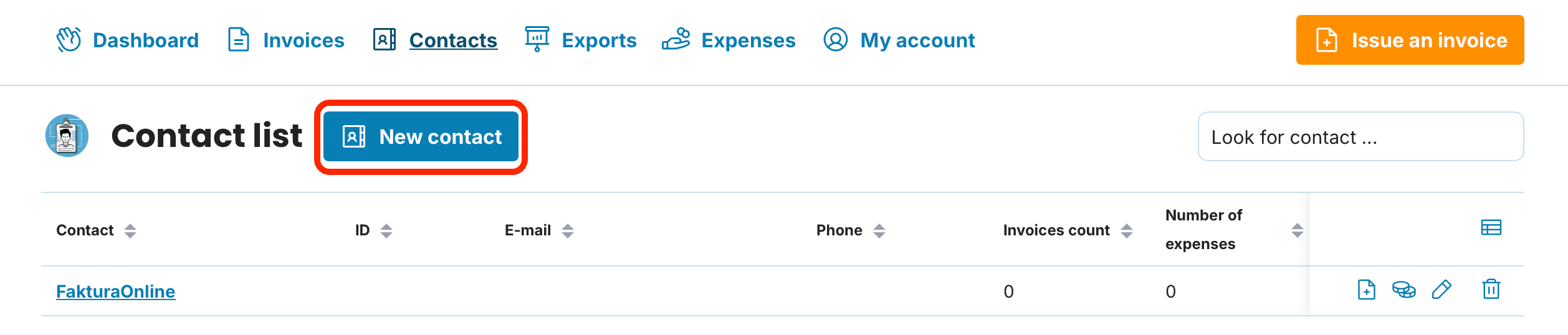
Click New contact, fill in the details, and save your changes.
Working with the contact overview
The contact overview gives you several handy tools to organise and find what you need:
Sorting — use the arrows next to the Contact, VAT number, Email, Phone, and Invoice count columns to sort entries in ascending or descending order.
Search — locate a particular customer using the Look for contact… field above the list.
Quick actions — the icons on the right-hand side of each row let you issue a new invoice, record an expense, edit the details, or remove the contact altogether.

Removing a contact has no impact on invoices you have already issued — your records remain intact. The customer simply will not appear as a suggestion the next time you create an invoice.
Reviewing the invoice history of a customer
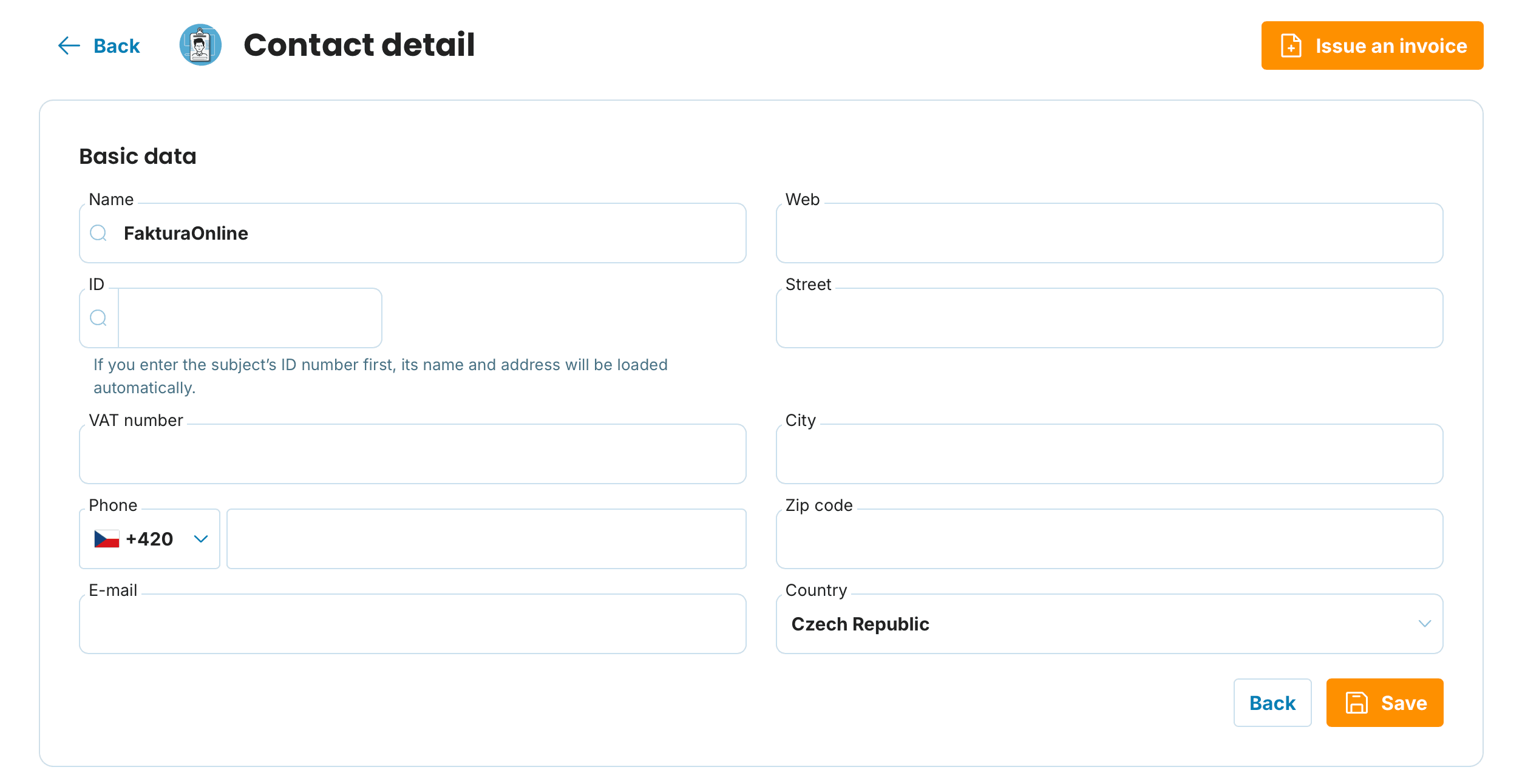
Click any contact to open its detailed view.
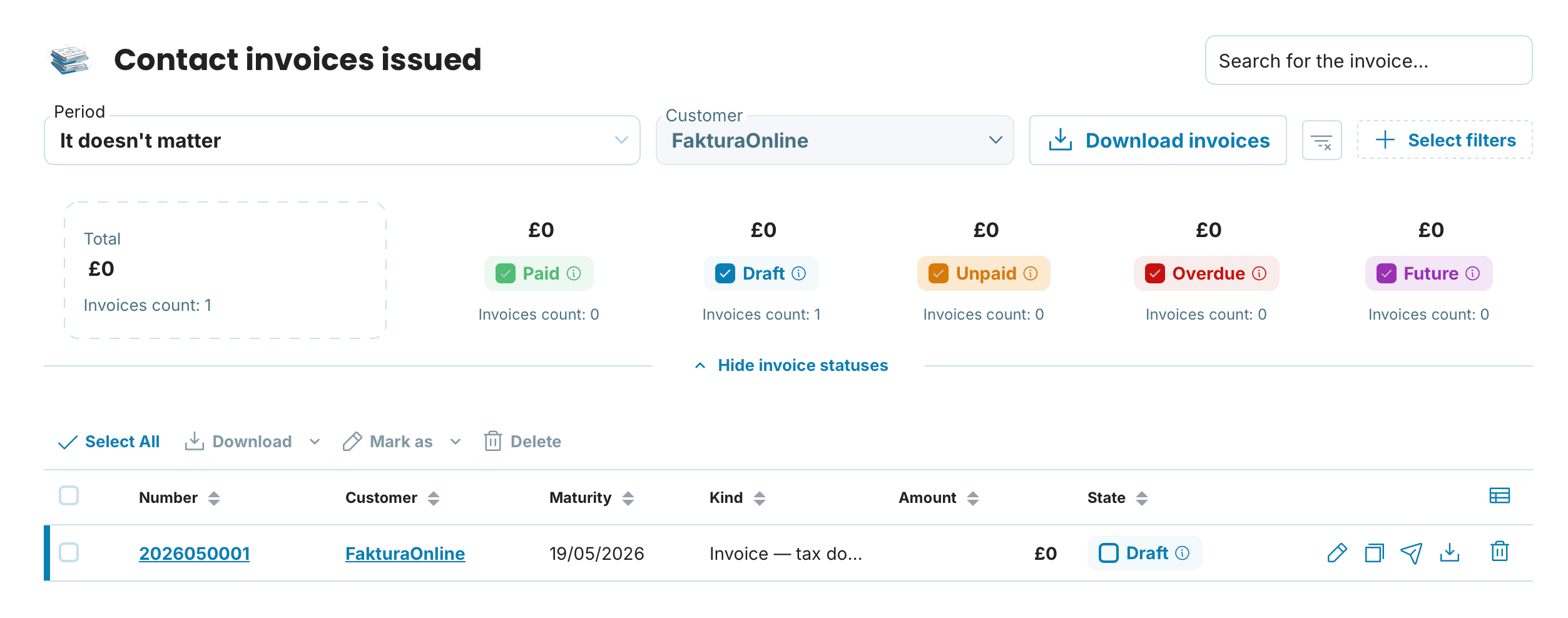
At the bottom you will see a complete overview of every invoice you have issued to that customer — amounts, due dates, and payment status, all gathered in one place.
Exporting your contact database
You can download your entire contact database whenever you need it, either as an Excel file (XLSX) or as a vCard (VCF). Excel is the right choice when you need to share the list with your accountant, keep an offline backup of your data, or update many entries at once — simply open the file and work with it like an ordinary spreadsheet. The vCard format, on the other hand, is ideal for importing your contacts directly into your phone or email client, so your customers stay within easy reach even outside My Invoice Online.
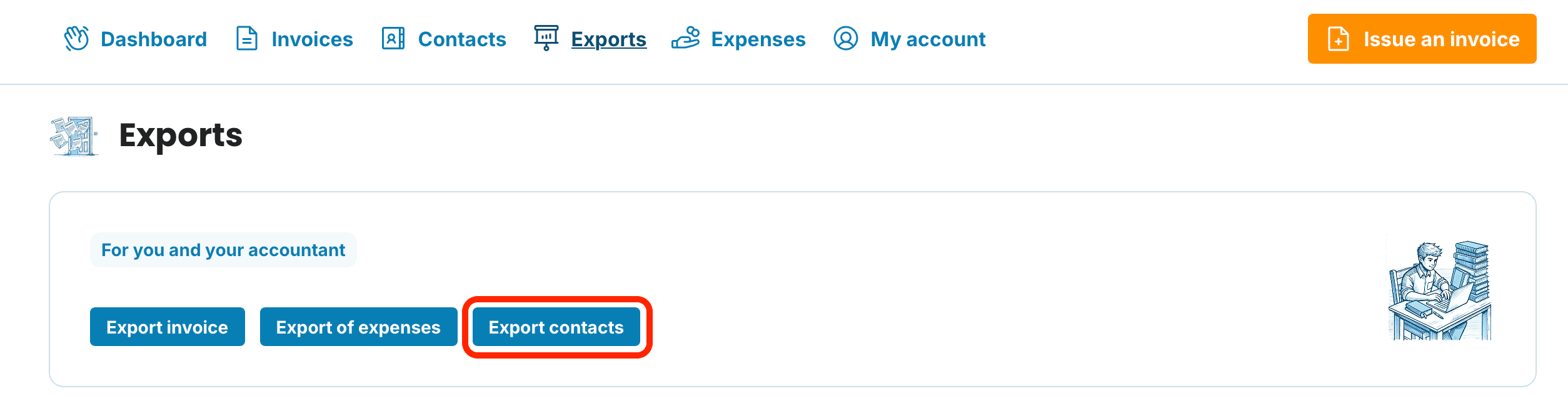
From the top menu, open the Exports section and click the Export contacts button.
Choose the format you need — Excel or vCard.
A well-maintained contact database makes invoicing significantly faster — rather than digging through old emails and previous invoices, everything is just a few clicks away. It is therefore worth keeping your contacts up to date from the very beginning and regularly filling in any missing email addresses or phone numbers, so you have everything to hand when the time comes to send a reminder or a fresh invoice.