Multiple Businesses Under One Login: How to Add, Switch and Merge Them

How it works: one login, several businesses
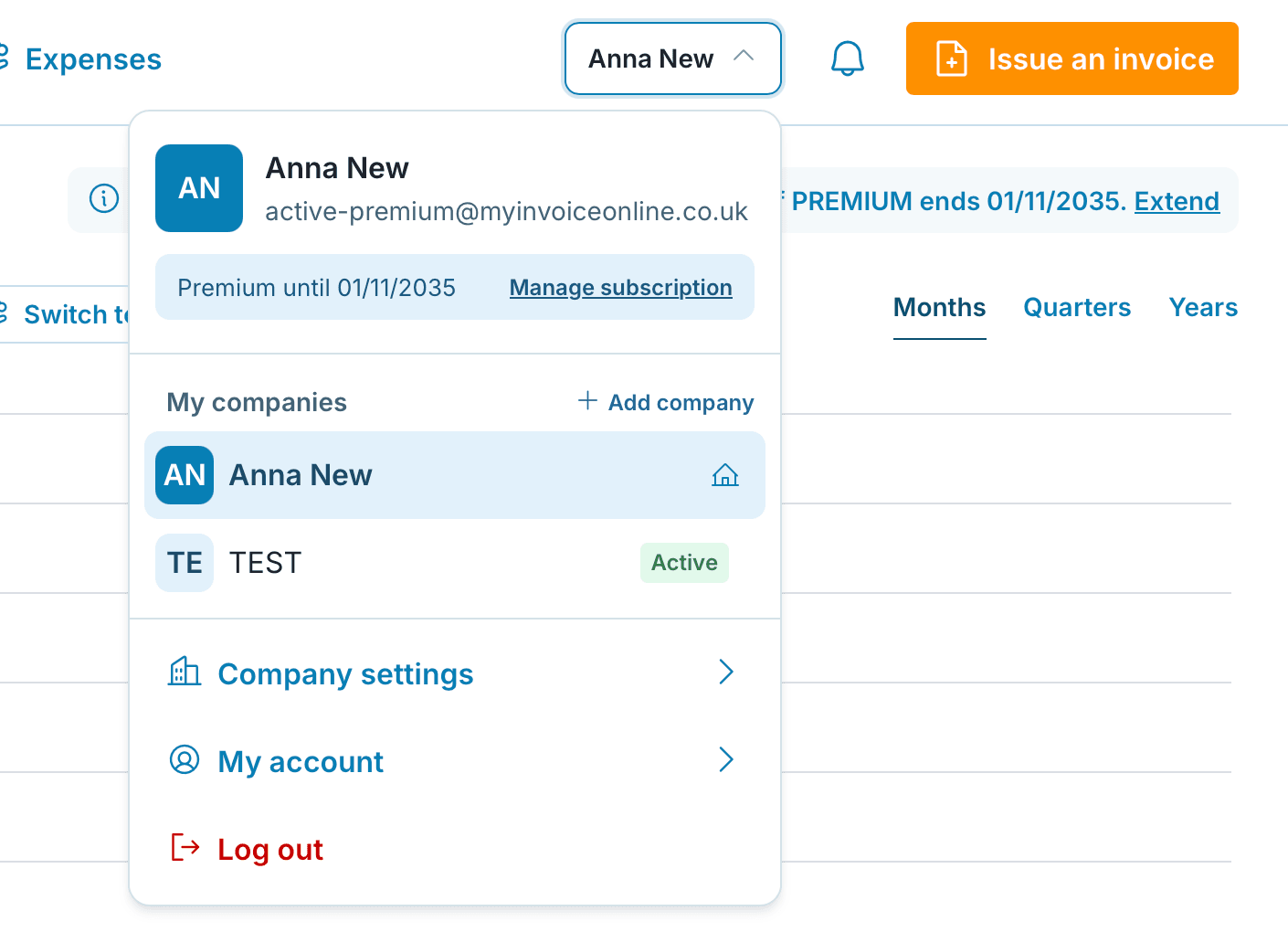
You log in to MyInvoiceOnline with an email and password. We call that your account. Under one account you can have one or more businesses, for example a sole trader business and a limited company. Each business is a separate space with its own invoices, and you switch between them in the menu at the top right.
In other words: one email and password, as many businesses as you need.
What each business keeps separate
When you add a second business, it gets its own space. Nothing gets mixed up with the first one:
invoices and their number sequences
the bank account printed on the invoice
logo and stamp, invoice template and texts
billing address and seller details
tax reports
users you invite to the business
plan
The only thing all businesses share is the login: email, password and two-factor authentication.
How to add a business
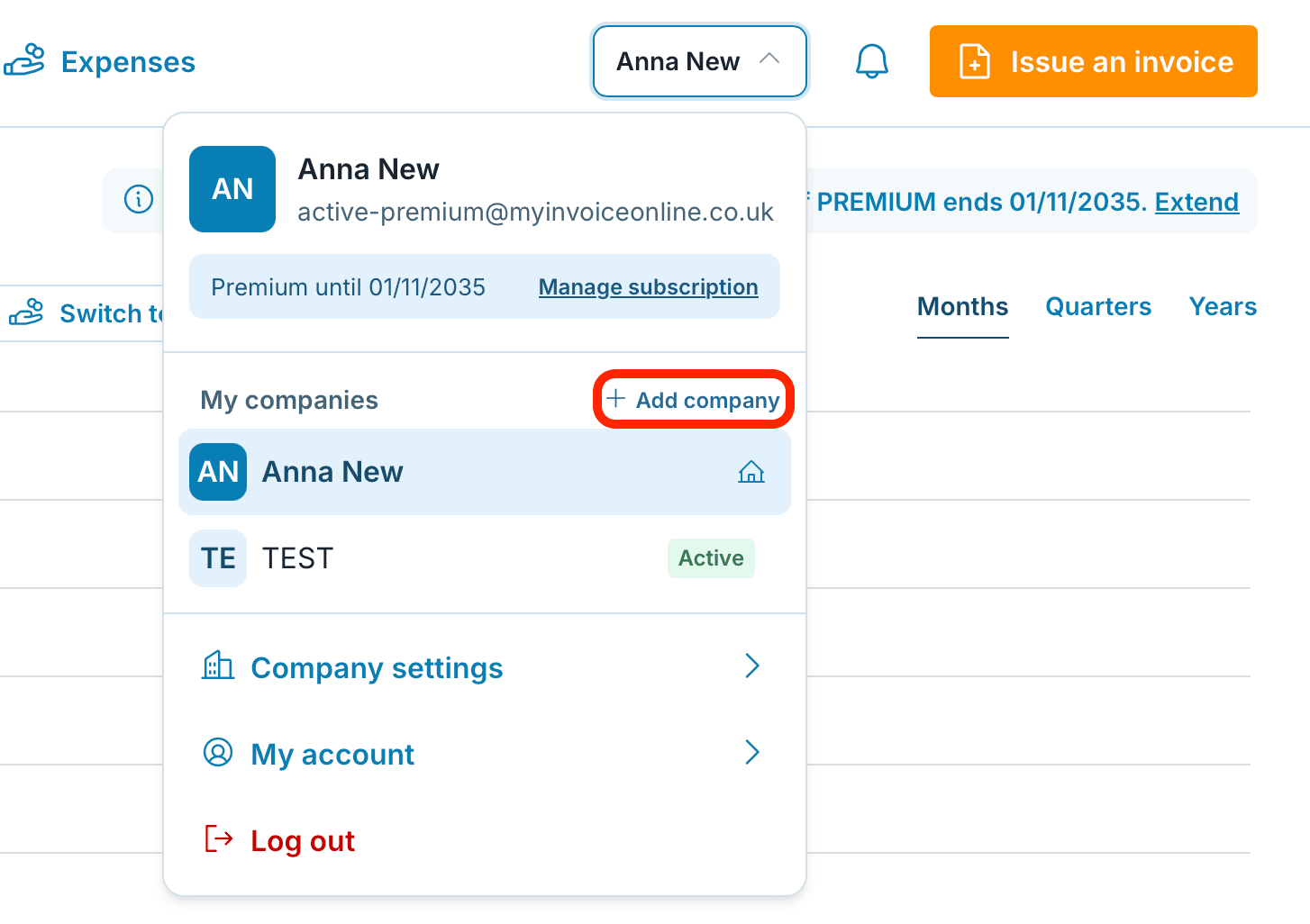
Click the business name at the top right. The menu opens.
Next to the My companies heading, click Add company.
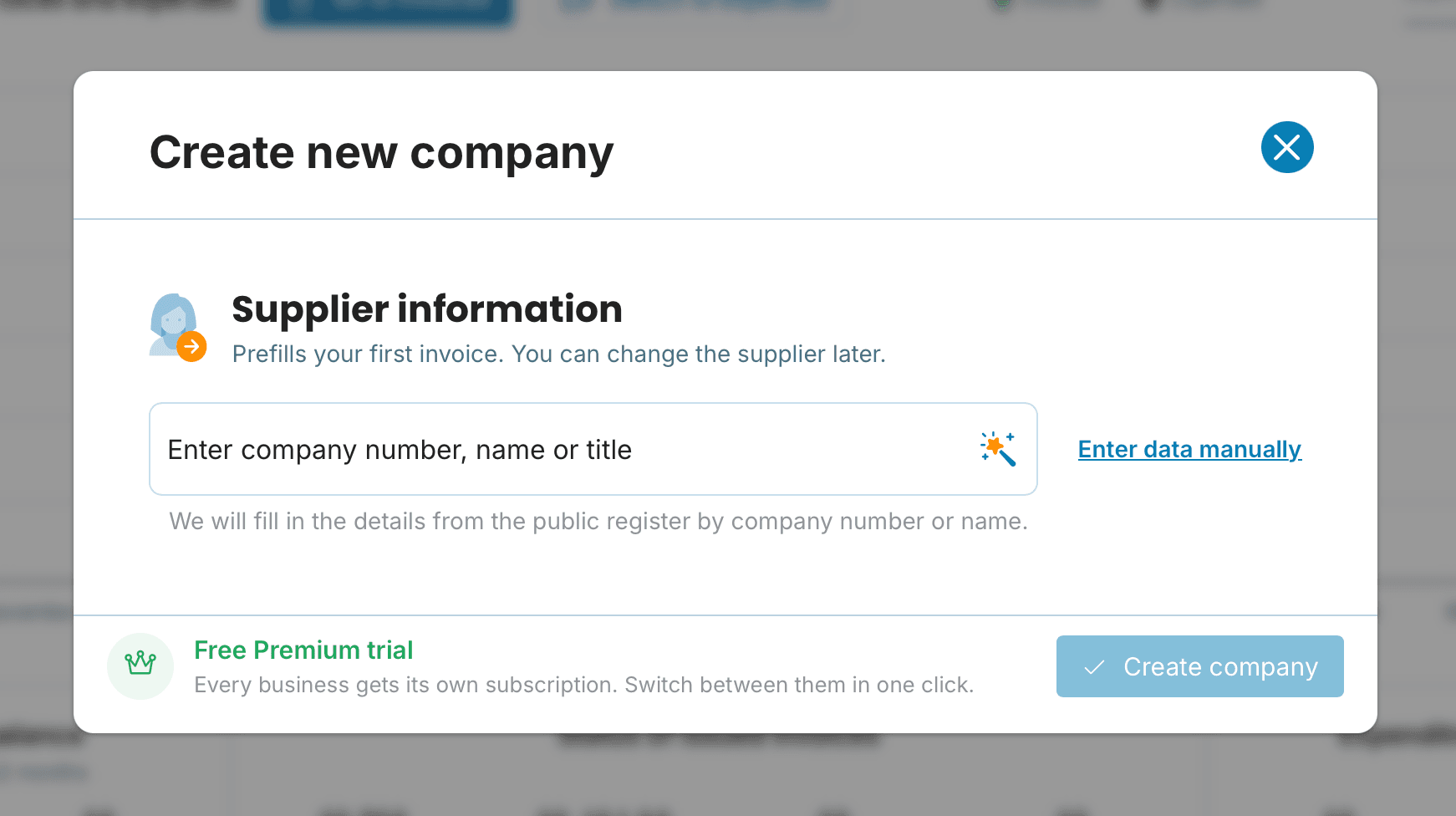
Enter the business name, company number or UTR and address.
Check the details and click Create company.
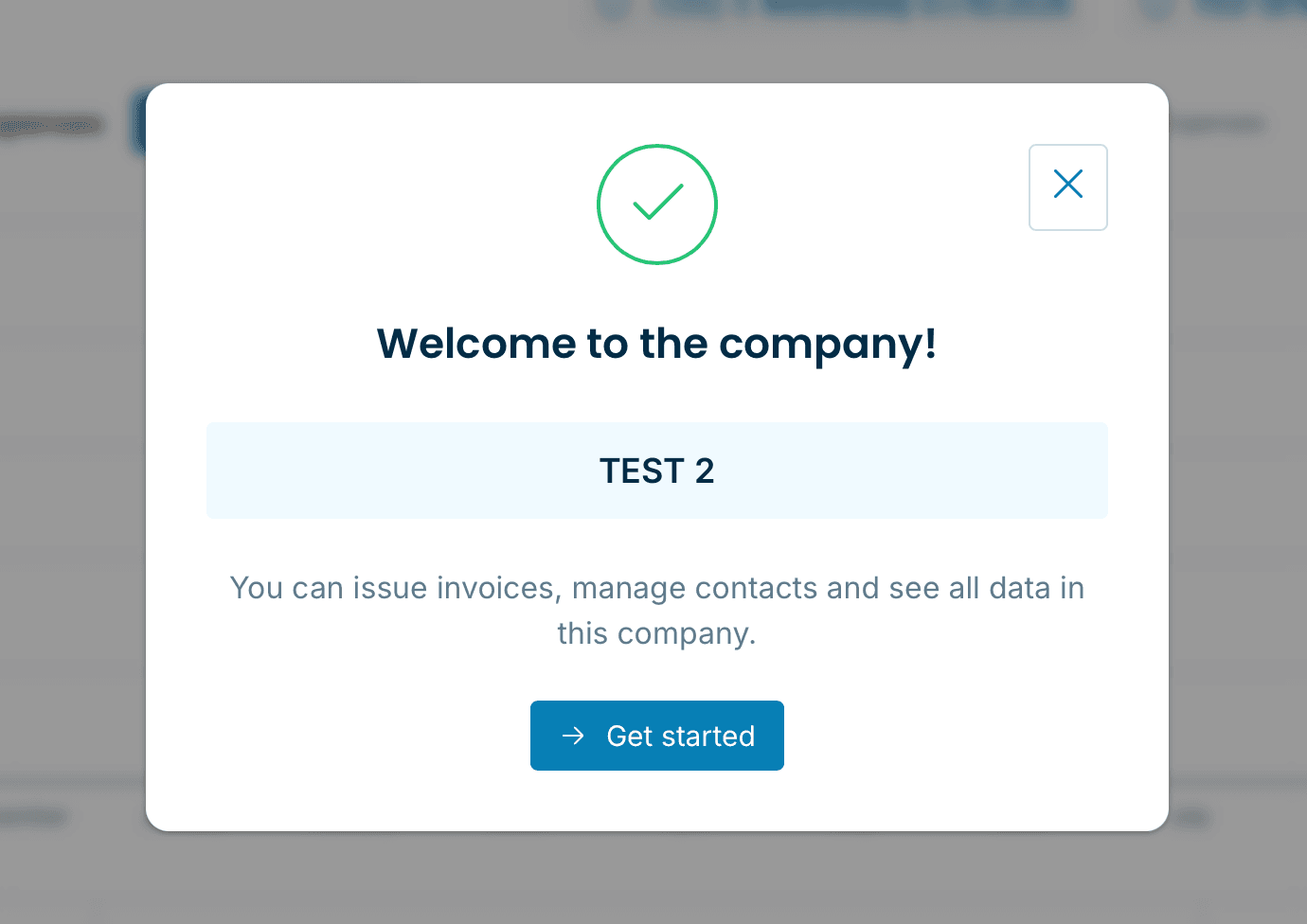
A welcome window appears. Click Get started and you are in the new business. It starts empty; invoices from your first business stay where they were issued.
How to switch businesses
Click the business name at the top right and pick the one you want to work in from the My businesses list. You stay on the same page; only the invoices, settings and plan change. No need to log out.
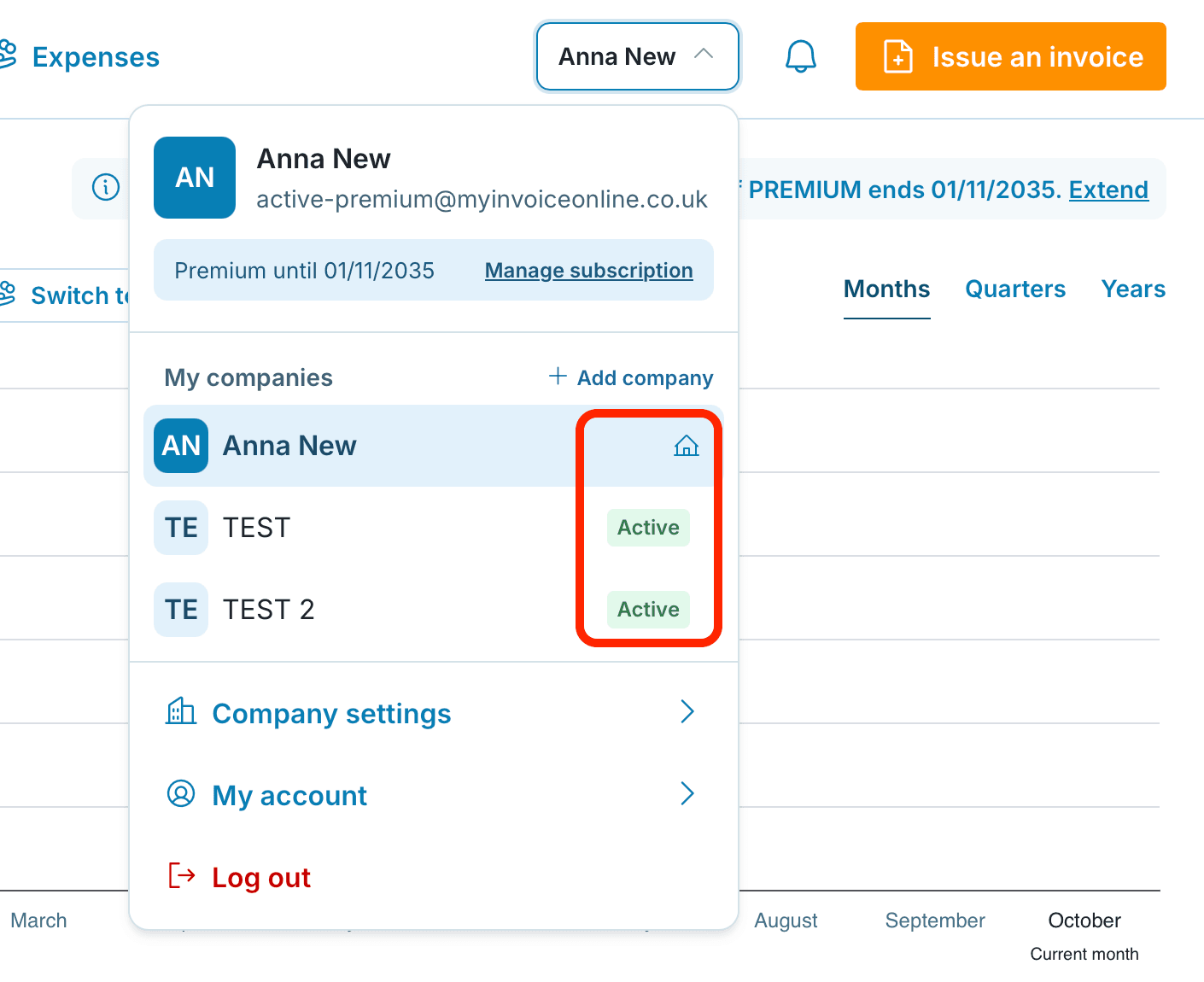
The business you are currently in is highlighted in the list. Next to the others you see the plan status: Active or Plan expired. Hover over the label to see the date the plan runs until or when it expired.
Default business and renaming
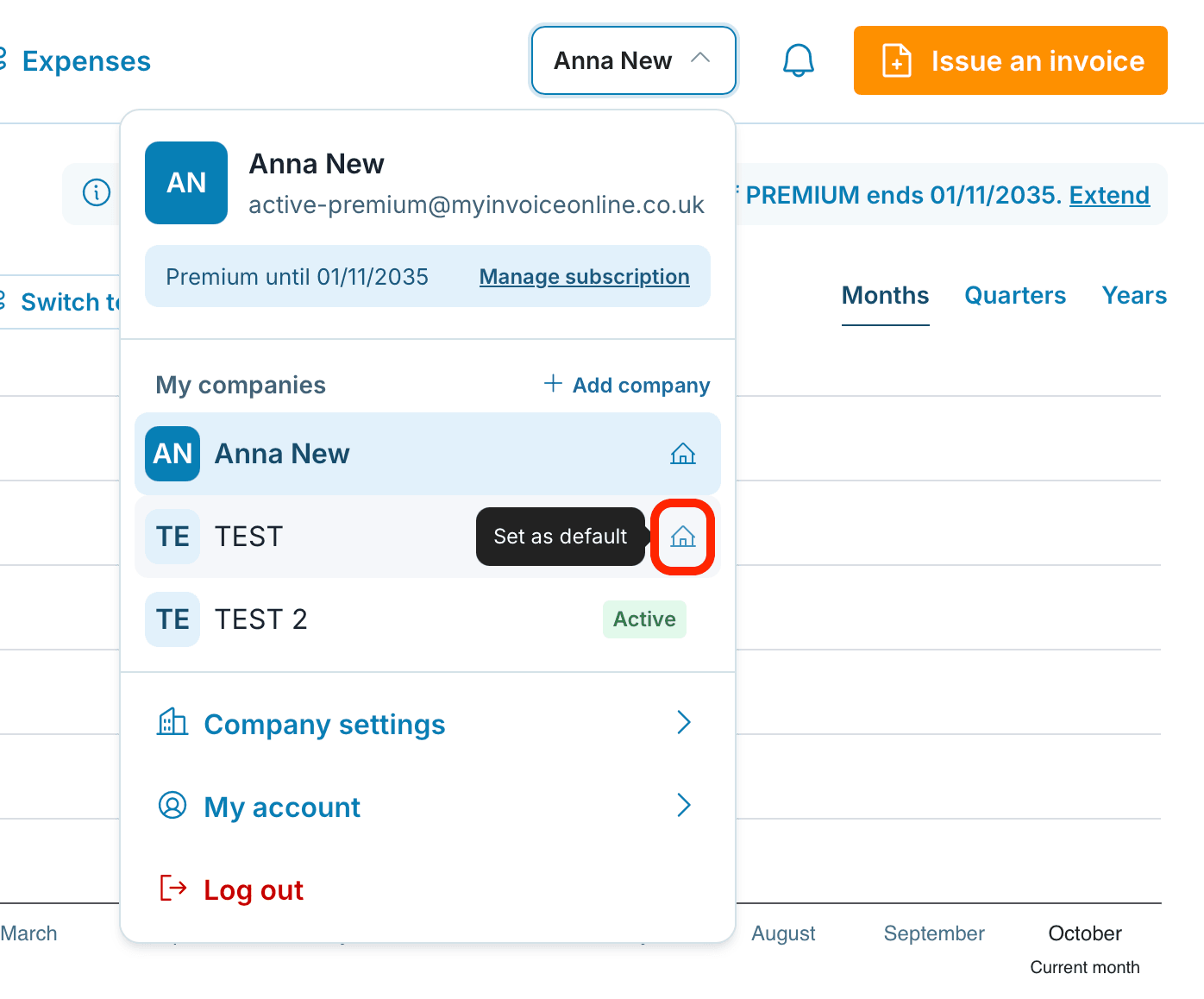
After logging in you always start in your default business, marked with a house icon. You can change it on a computer: hover over the business row and click Set as default.

You can rename a business in the list, for example to “Freelance” and “Shop”, so it is easier to tell them apart. Hover over the business row, click the pencil icon, type the new name and confirm with the tick. Only the name in the menu changes; the details on your invoices stay the same.
Renaming and changing the default business are not available on mobile; do both on a computer.
Settings: what belongs to the business and what to the account
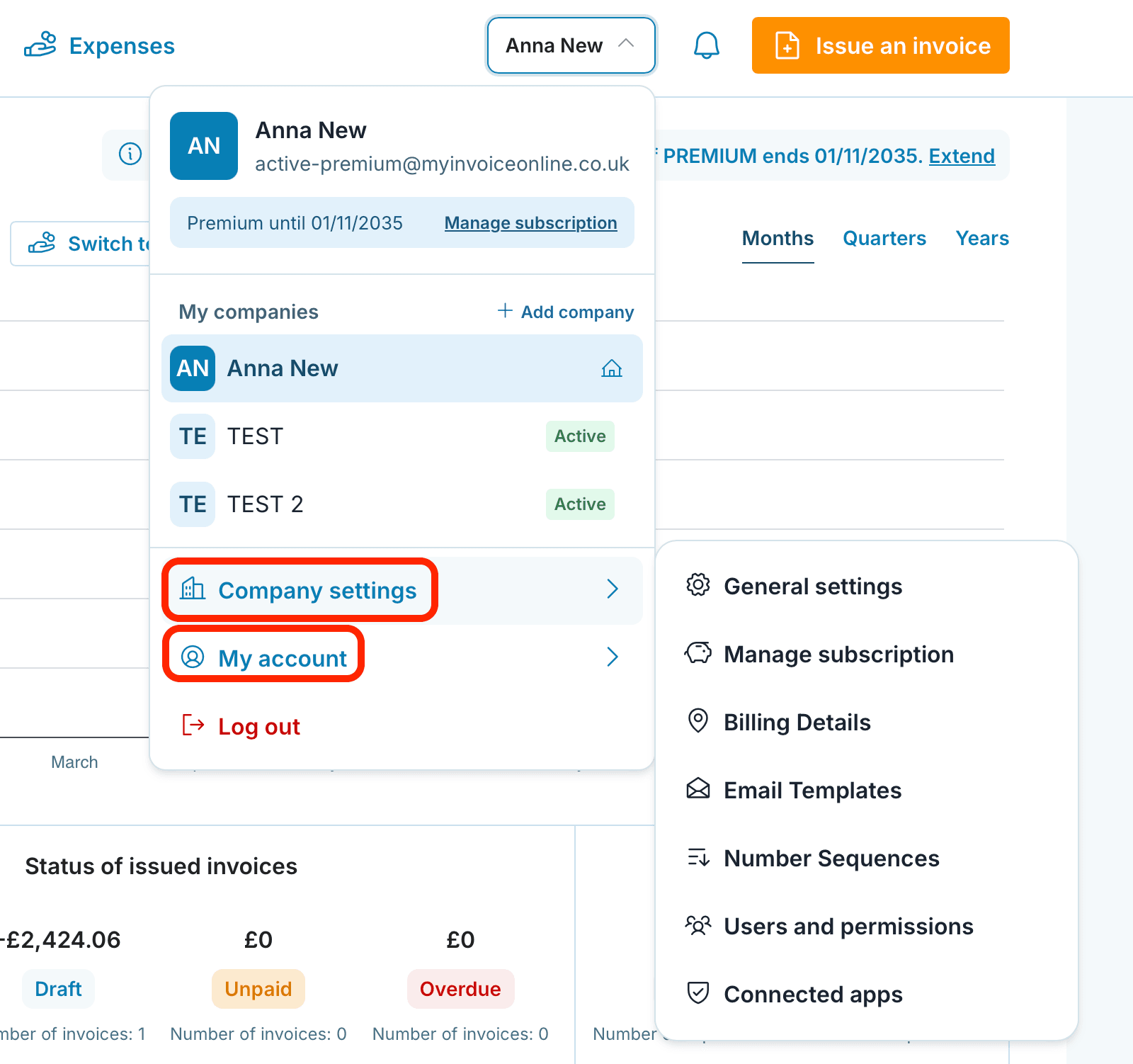
The menu has two settings entries, and each covers something different:
Company settings: general settings, plan management, billing details, email templates, number sequences, users and permissions, app integrations. Everything applies only to the business you currently have selected; its name is shown in the header of every window.
My account: password change and two-factor authentication. These apply to all your businesses.
What it costs
Each business has its own plan, Mini or Premium, and you can combine them freely. One business’s plan never affects the others: if you upgrade one to Premium or let it expire, the other keeps running unchanged.
New business: 5 weeks of Premium free
Every newly added business gets 5 weeks of Premium for free, just like your first registration. During the trial we send no emails about the new business. We only get in touch before the trial ends, and the email always says which business it concerns, so you know what you are renewing.
Discount for the second and every further business
You pay less for the second and every further business. The discount depends on the total number of businesses under your login and applies to each of them:
2–5 businesses: 20% off each business
6–10 businesses: 30% off each business
11 or more businesses: individual offer, get in touch
The discount applies every year, not just at the first renewal.


Already have two accounts with us, or invoicing several businesses from one?
Until now this was handled either with two accounts under two emails or with all invoices in one account. Both can be converted to businesses under one login:
Several accounts under several emails: we merge them under one login. The businesses stay separate, plans included; you just reach both with one email.
One account with invoices for several company numbers: we split it into separate businesses and assign the existing invoices to the right one.
In both cases, email [email protected] and tell us how you invoice today. We will help you with the move and you will not lose any invoices.
Can I have a sole trader business and a limited company under one login?
Yes. Each is a separate business with its own invoices, number sequences and bank account. You switch between them in the menu at the top right.
Will invoices from my two businesses get mixed up?
No. Each business has its own invoices, number sequences and tax reports. The invoice always shows the bank account of the business you issue it from.
Does each business pay for its own plan?
Yes. Each business has Mini or Premium, the combination is up to you, and changing one business’s plan does not affect the others. You pay less for the second and further businesses; support sets up the discount.
Do I get a new trial for a new business?
Yes. Every added business gets 5 weeks of Premium free, regardless of the plans of your other businesses. During the trial we send no emails about it; we only write before it ends.
How do I get the discount for a second business?
The discount is not applied automatically at checkout. Email [email protected] and we will set it up. It applies every year, not just the first.
One business’s plan expired. Does that affect the others?
No. Each business has its own plan and its own end date. The others keep running unchanged; you only renew the one that expired.
I added a business but I can’t see my invoices in it.
A new business starts empty. Invoices belong to the business they were issued in. If you have been invoicing for several businesses from one account and want to sort the invoices, email support and we will help.
Will I lose invoices from the second account when merging?
No. The invoices stay with their business; you just reach it through one login. The plan of the second account moves with it.
I set a different default business, but I still land in the old one after logging in.
The default business applies from your next log-in. Log out and log in again.
I changed a setting and it only applied to one business.
That is by design. Business settings belong to the business you changed them in. Only the password and two-factor authentication are shared across all businesses.
