Configuration of displayed columns for issued invoices

MyInvoiceOnline lets you customise which columns appear in your invoice list — so you can focus on what matters most, whether that's payment status, due dates, or VAT tax points. Here's how to set up your invoice view for maximum efficiency.
Column customisation is particularly useful when:
You're keeping an eye on cash flow — display the payment status column to instantly spot which invoices have been settled and which are still outstanding
You're VAT registered — the tax point column helps you verify which accounting period each invoice belongs to
You work with multiple clients — adding the Customer column makes it much easier to find what you're looking for
Setting up your column preferences
Head to the Issued Invoices section and click the Display columns icon on the right-hand side
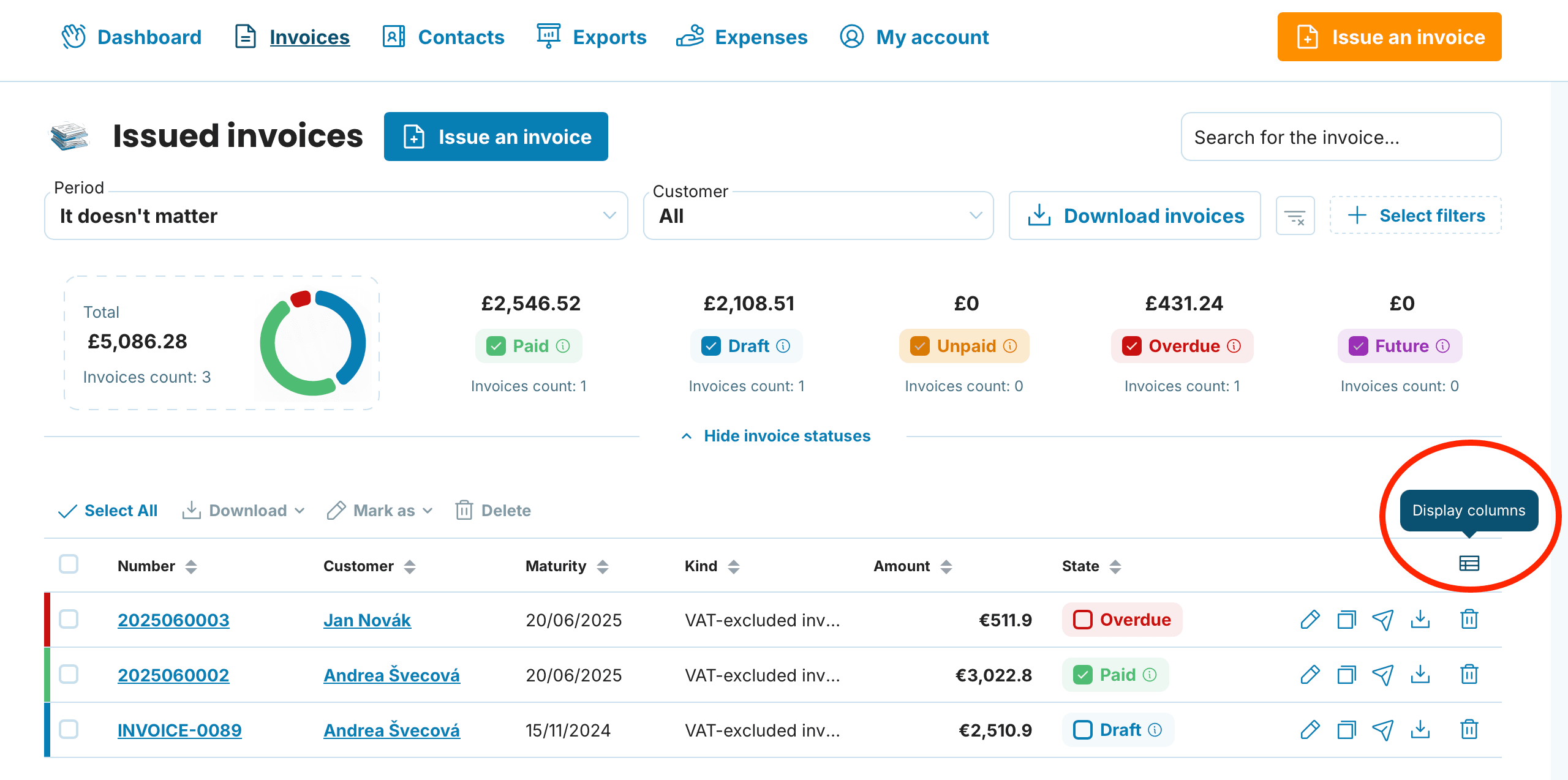
Clicking this icon reveals a menu with the following options:
Number — always visible, cannot be hidden
Seller
Customer
Issued on
Maturity
Tax point on — indicates the VAT accounting period
Paid on
Sent
Kind
Amount — always visible, cannot be hidden
State
Payment method
Suggested configurations for different business needs

Not VAT registered
Focus on these columns: Customer, Issued on, Maturity, State, and Paid on. Feel free to hide Tax point on — it's not relevant if you're not registered for VAT.

VAT registered
Your ideal setup includes: Customer, Issued on, Tax point on, Maturity, State, and Paid on.
The tax point date determines when VAT becomes accountable on a transaction. While it often coincides with the invoice date, this isn't always the case. This distinction matters most at month-end or quarter-end, as it affects which VAT return includes the transaction. Keeping this column visible helps ensure your records align with the correct reporting period.
High-volume invoicing (10+ per month)
When you're processing numerous invoices, a cleaner view works best. Stick to the essentials: Customer, Maturity, and State. You can always click through to any invoice for full details.
Simply tick or untick the boxes in the dropdown to show or hide columns as needed.

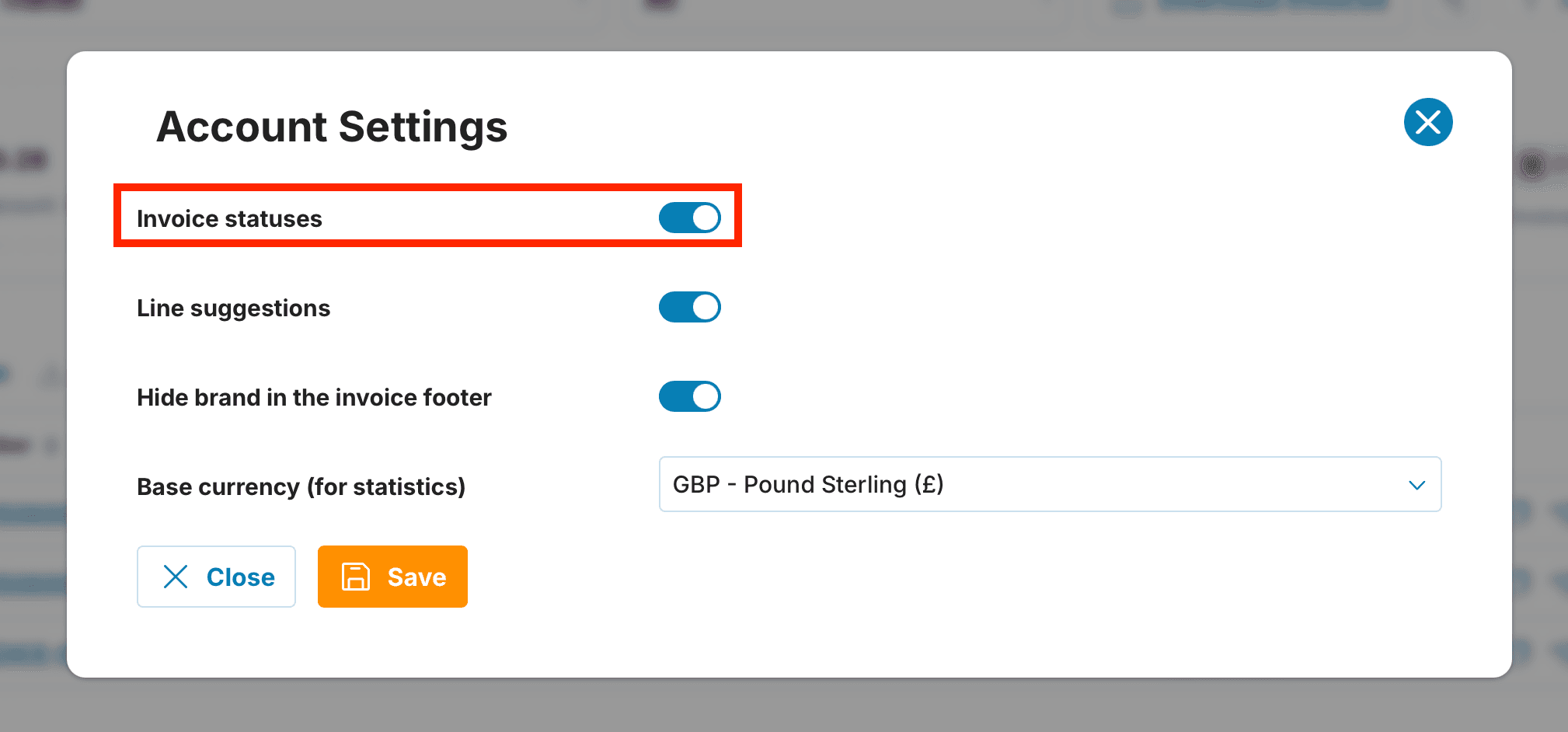
To enable columns like State, Paid, and Sent, you must activate the Invoice statuses feature. This can be easily accomplished by navigating to My Account > Account Settings and then turning on the Invoice statuses setting. Be sure to save your changes after making this adjustment.