Recurring Invoices: A Simple Guide to Managing Regular Invoicing
This feature is especially useful for sole traders and freelancers with regular clients, as well as businesses that bill monthly retainers or subscriptions. Just set up the invoice once and MyInvoiceOnline will issue it automatically at the interval you choose.
Creating a new recurring invoice step by step
Log in to your account and select Create Invoice.
Fill in all the invoice fields as usual – including items, prices and other required details.
Below the total amount you'll find the Regularly bill option – this button enables repeated issuance of the same invoice.
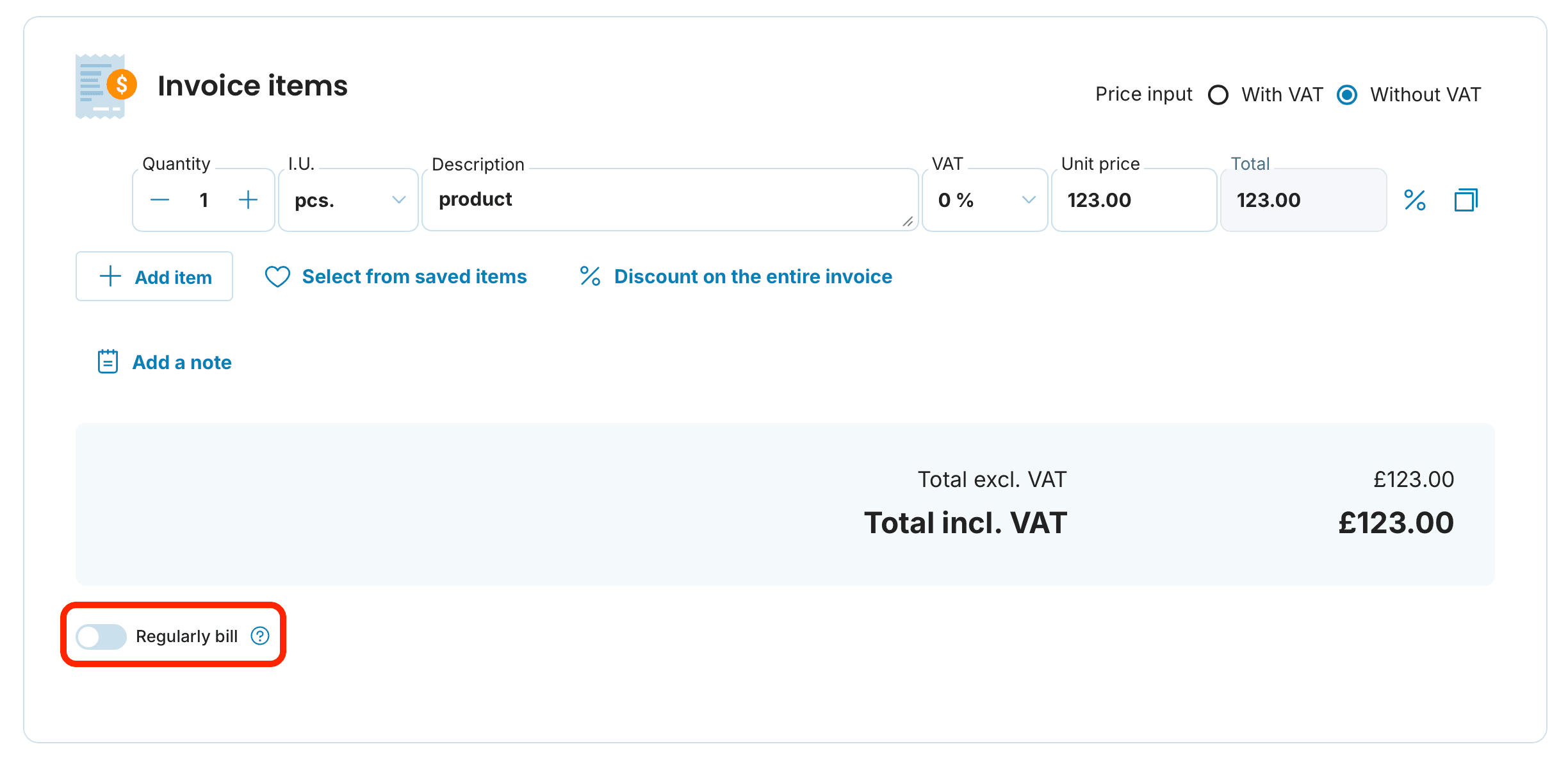
Once you switch the Regularly bill button on, the setup options will appear.

Choose the period at which the invoice should be created: weekly, monthly, quarterly, half-yearly or yearly.
-
Set when the recurrence should end – you have three options:
Never – the invoice will be created repeatedly without any limit.
After a certain number of repetitions – enter the number of repetitions in the field that appears, after which issuance will stop.
By a specific date – set a specific date in the field that appears when the recurrence should end.
You can also check the date of the current invoice and adjust it if needed. Based on your settings, the Next Invoice section will also show you when the next invoice will be issued.
You can also tick the Issue on the last day of the period option – this way the invoice will always be issued at the end of the chosen period.

Issuing the invoice and viewing upcoming invoices
Once all parameters are set, issue the invoice. The current invoice will be issued immediately.
You'll find the issued invoice in the Invoices section, where it will display its current status (draft, paid, unpaid, overdue).
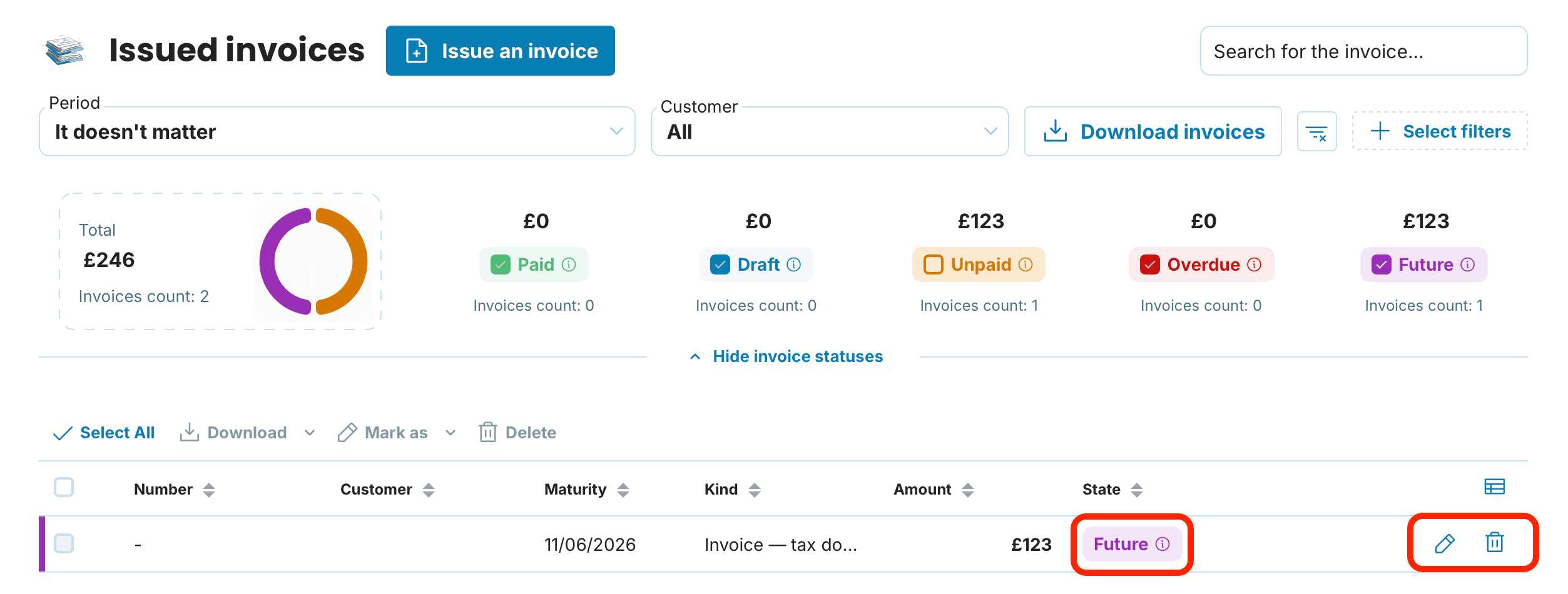
Future invoices, scheduled to be issued according to your settings, are shown under the Future tab.
You can edit or delete upcoming invoices at any time – just click the pencil icon to edit or the bin icon to delete.
How do edits work?
If you edit the original invoice (the one already issued) after issuance, the changes won't carry over to the prepared upcoming invoice. Each upcoming invoice draws data from the original template only at the moment it's created, so if you edit an invoice that's already been issued, upcoming invoices will remain unchanged. However, if you edit an upcoming invoice that's ready to be issued, the changes will carry over to all subsequent recurring invoices that follow.

Have you agreed a higher monthly retainer with your client starting next year? Edit the nearest upcoming invoice in the Future tab – the change will automatically carry over to all subsequent scheduled invoices.
A recurring invoice is a feature that takes just a few minutes to set up. Each month the invoice will then go out automatically and you can focus on the work you actually enjoy.
Check out our video tutorial for setting up recurring invoices:
