Streamlining invoice items
When you're invoicing for identical work each month – whether that's consultancy hours or routine maintenance – manually entering the description, rate, and unit every single time is simply inefficient. By saving your most-used items, you'll speed up the invoicing process whilst ensuring consistent descriptions and pricing across all your documents. It's also brilliant for brand consistency – your clients will see uniform service descriptions on every invoice they receive.
Creating a new saved item
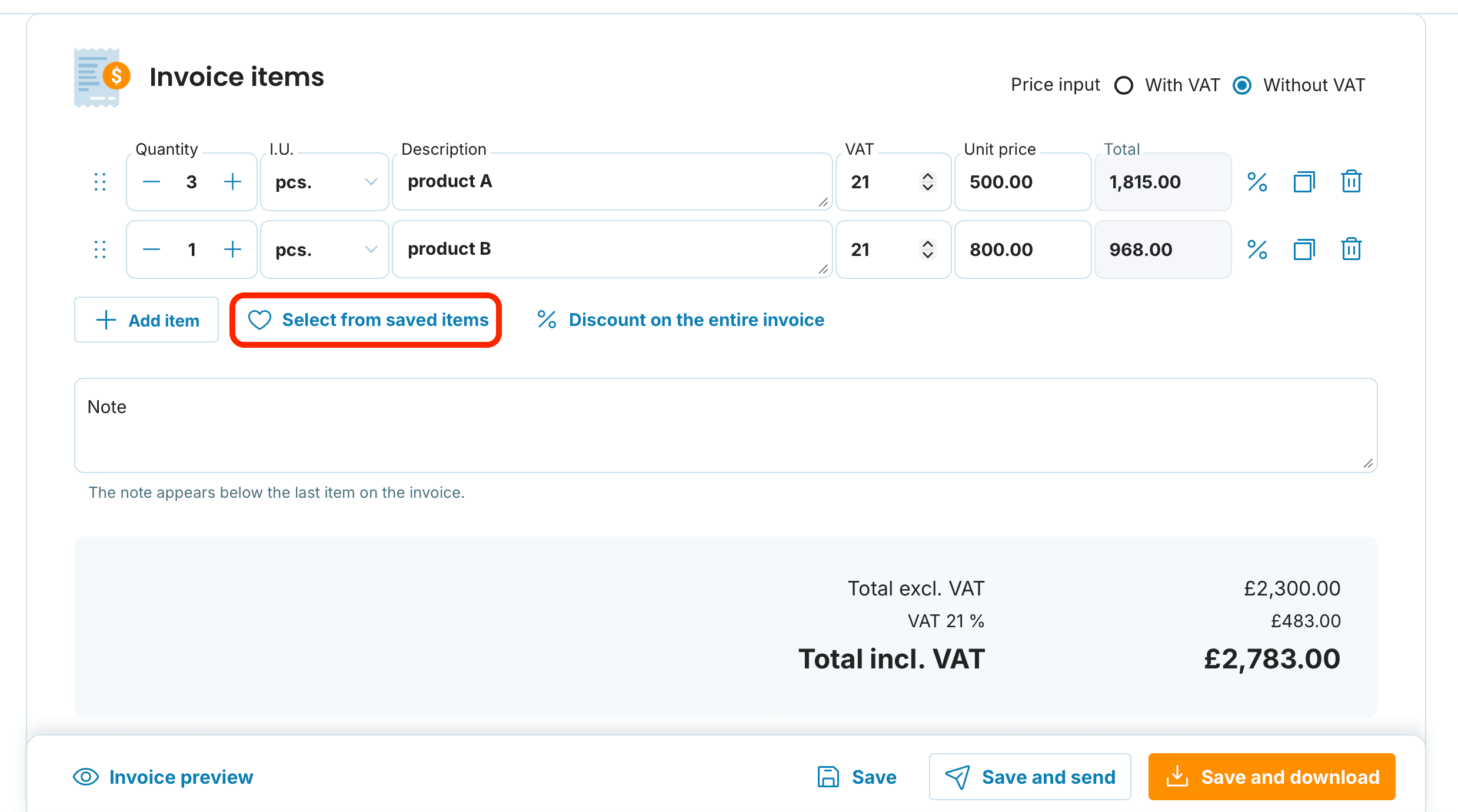
Within the invoice form, click Select from saved items
Enter the description, unit of measure, VAT rate, and price
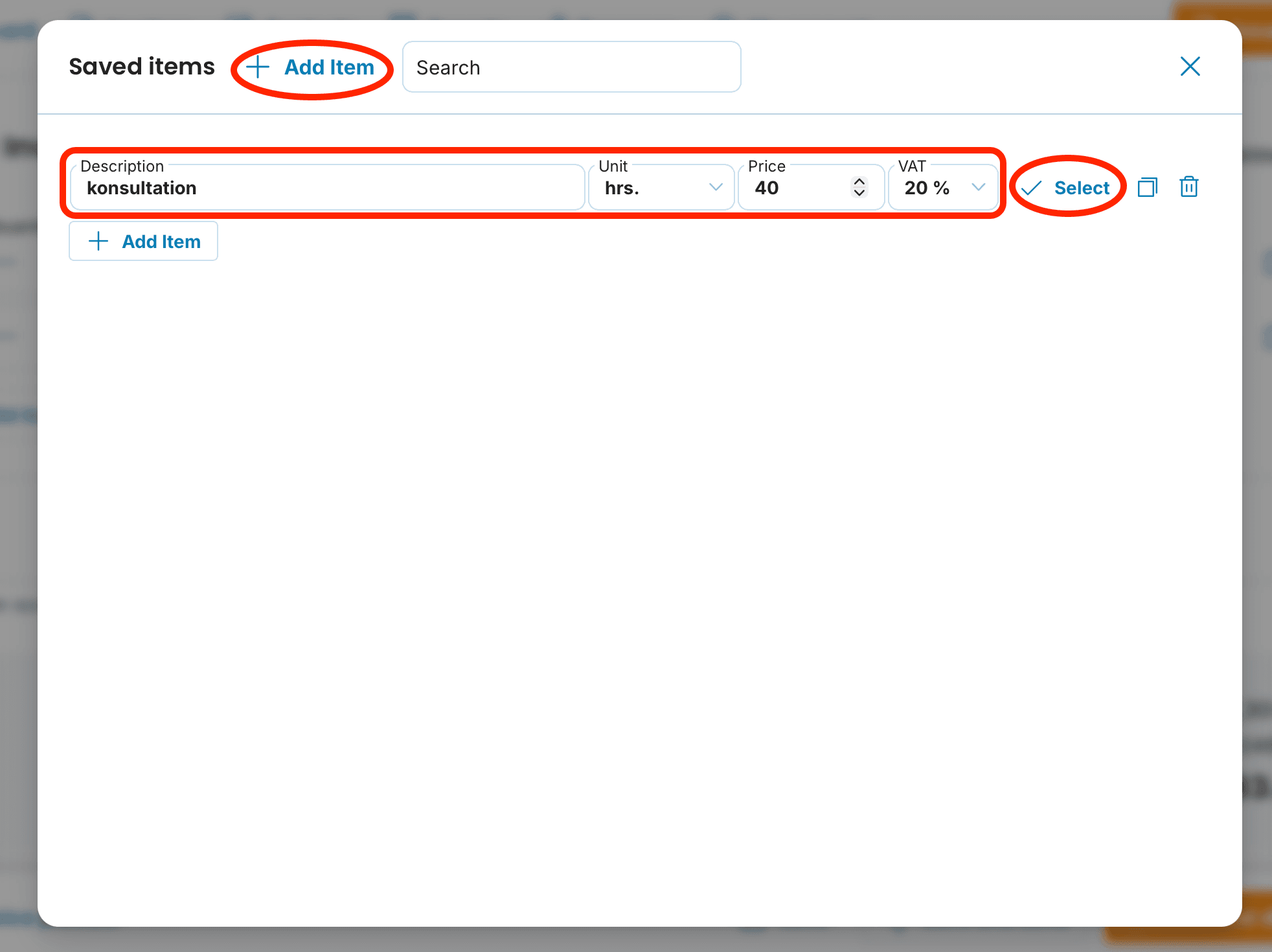
Your item will be stored in your personal list – to use it, simply click Select from saved items followed by Select

Understanding the item icons
Percentage – Discount: Need to apply a discount to a particular item? Use this button to add it. You'll find a comprehensive guide in this article.
Copy: Creates an exact duplicate of the item.
Bin: Removes the item instantly with a single click.
Modifying and removing saved items
Your saved items aren't permanent – you're free to update them whenever needed. You can:
amend the description, price, or unit of measure
delete an item entirely by clicking the bin icon

Bear in mind that updating a saved item's price won't affect previously issued invoices. Any changes will only apply to new documents going forward.
🔍 Smart item suggestions
Once you've enabled the autocomplete feature, the system will automatically propose items you've used before. Simply start typing a few characters.
Here's how it works:
As you begin typing an item description, suggestions from your history will appear
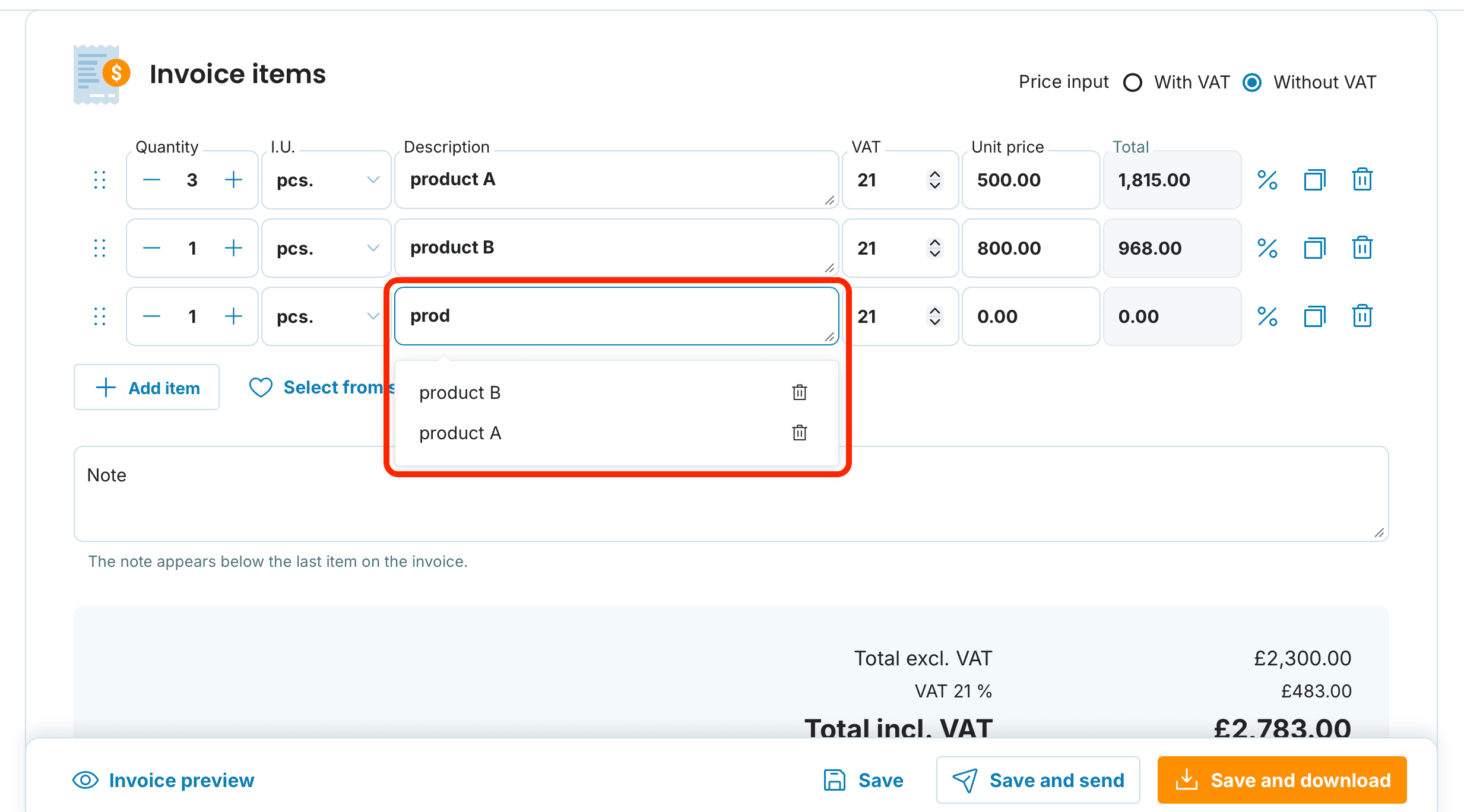
Pick the relevant option from the list
To remove a suggestion, click the bin icon beside it
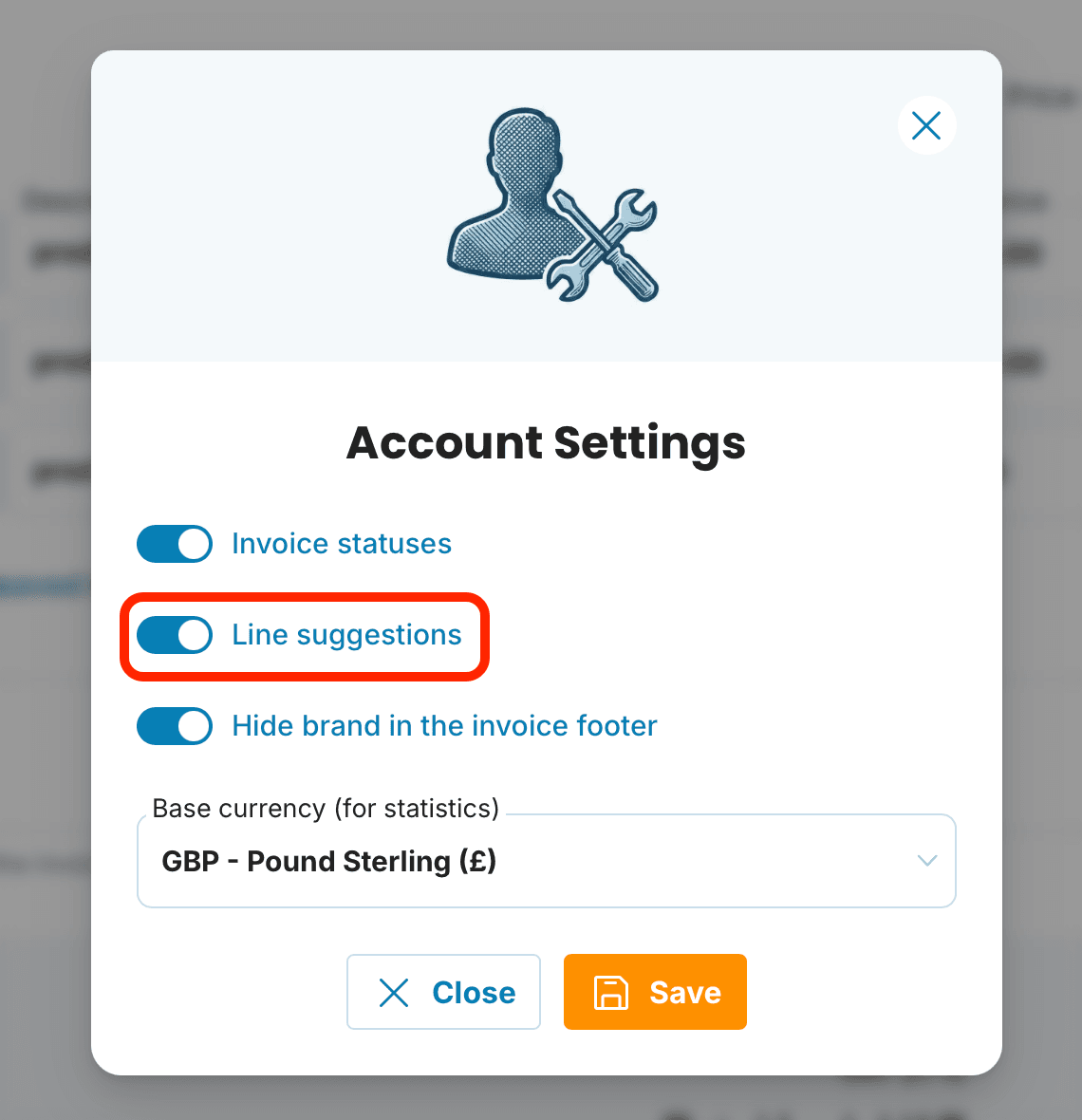
You can toggle this feature on or off via: My Account → Account Settings
📩 Having trouble with your settings? Drop us a message at [email protected]. We’re happy to assist.