How to Set a Discount on an Invoice

Discount on Invoice Line Items
A line item discount applies only to a specific product or service on the invoice. It is ideal when you don't want to adjust the total amount of the entire document, but only selected items.

When to Use a Line Item Discount
You are providing a discount on just one service or product.
Each item has a different discount amount.
You want the discount to be clearly displayed directly next to the item.
How to Add a Discount to an Invoice Line Item
Adding a discount to a specific invoice item is simple and intuitive. Just follow these steps:
Enter the item and its price
In the invoice creation form, enter the item description and its price.-
Click the percentage (%) icon
Next to the item price field, you will find a percentage (%) icon. Click it to access the option to add a discount.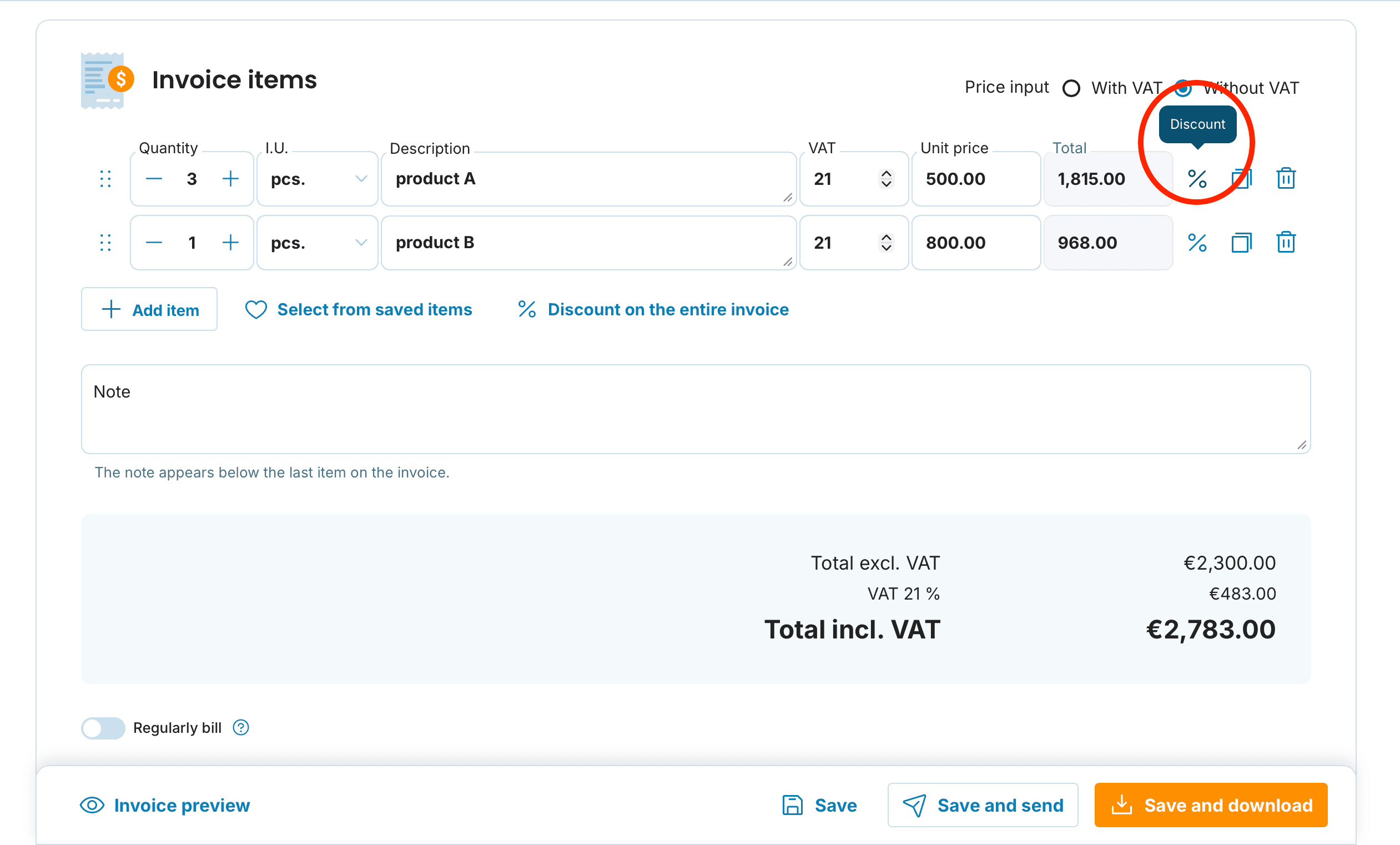
-
Enter the discount amount and type
After clicking the percentage icon, a new window will open where you can enter the discount amount. In the Discount Type section, you can choose whether the discount is expressed as a percentage (%) or as a fixed amount.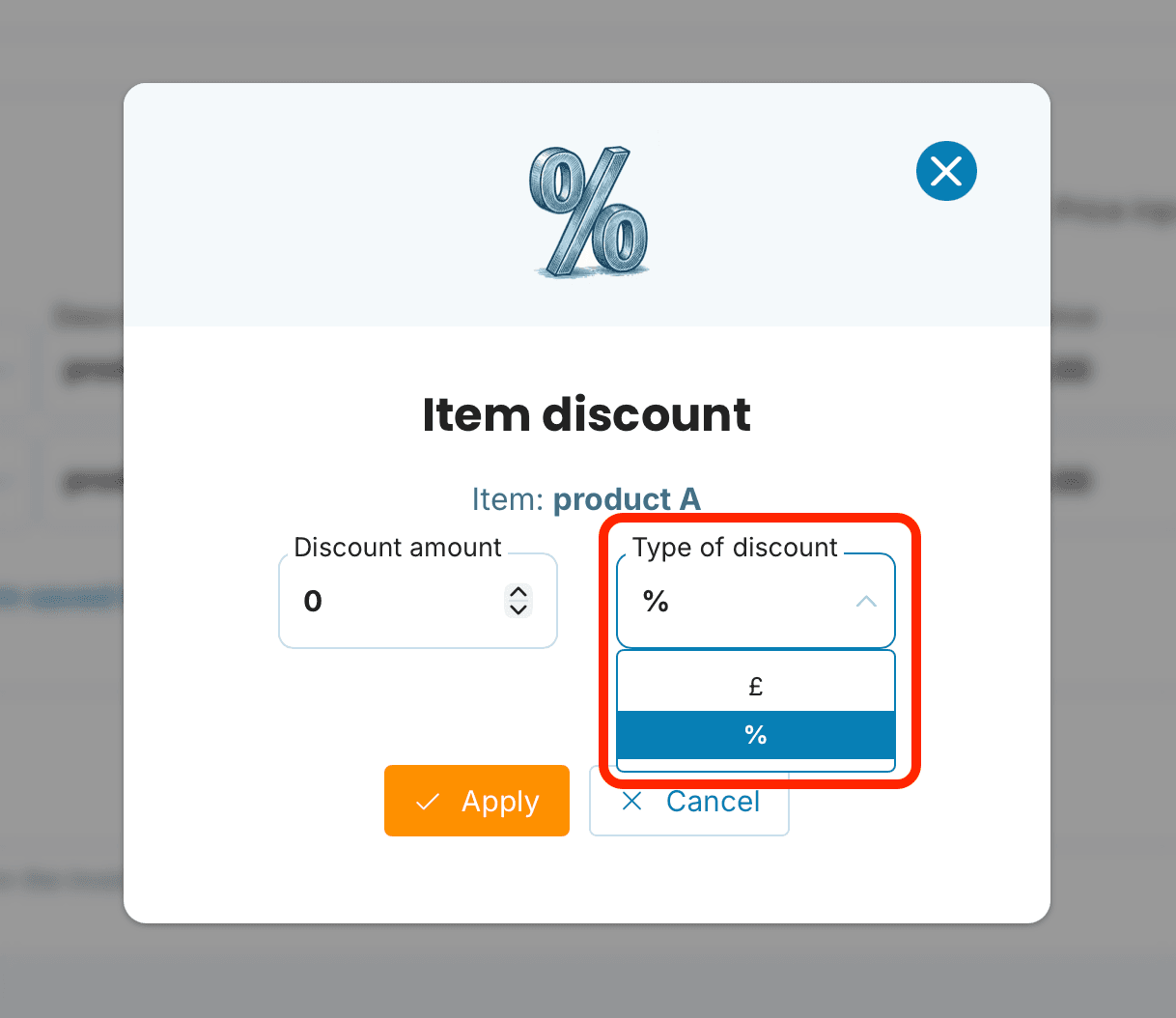
Confirm the discount
After entering the discount amount and selecting its type, click the Apply button. The discount will automatically be added to the item and the total price will be adjusted.-
Edit or remove the discount
If you want to modify the discount later, click the pencil icon next to the discount and make the necessary changes. To remove the discount, click the trash icon.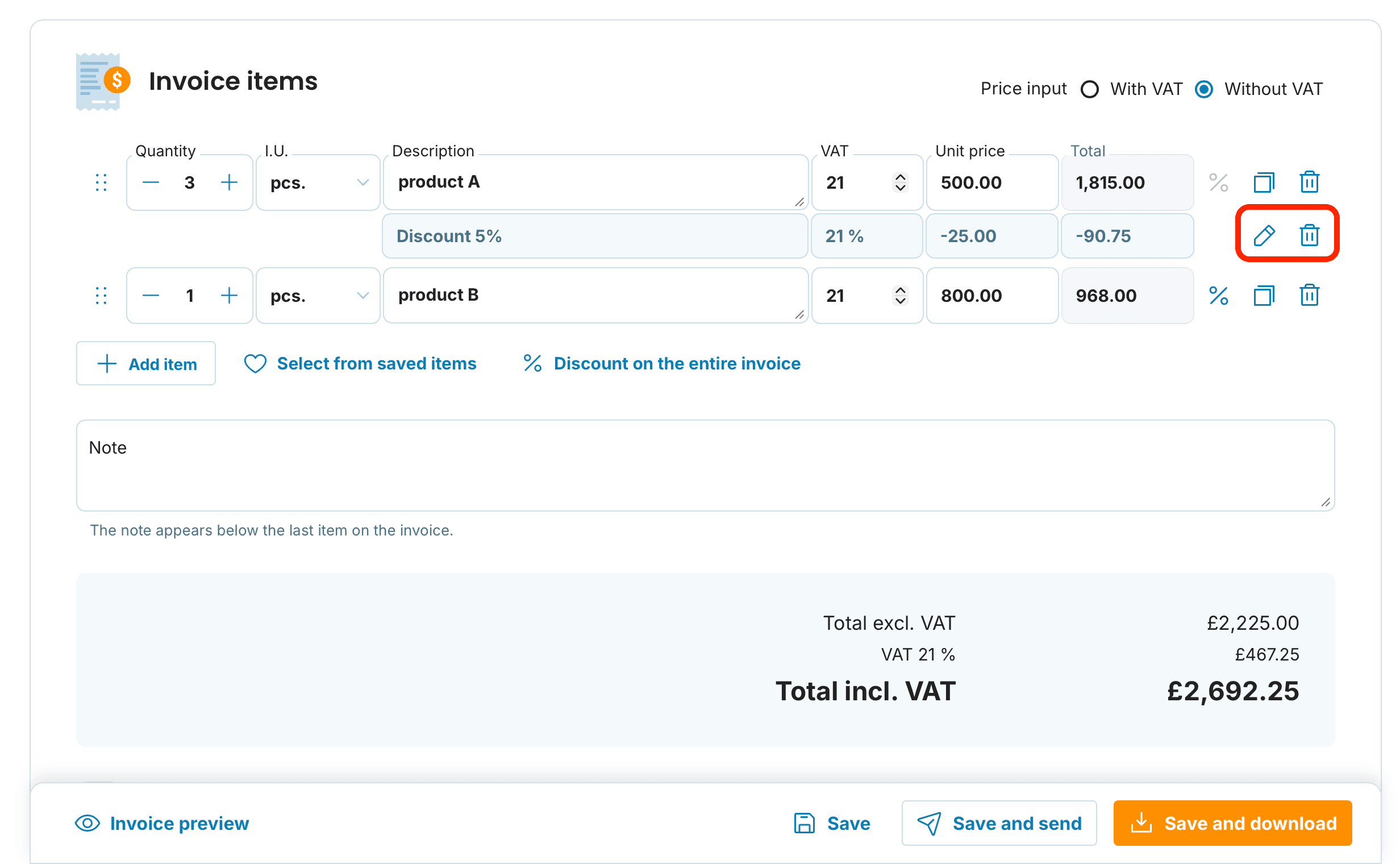
Discount on the Entire Invoice
In addition to discounts on individual items, you can also set a discount for the total invoice amount. This option is useful, for example, when applying a one-time business discount or adjusting the final price without modifying individual items.
When to Use a Discount on the Entire Invoice
You want to apply a uniform discount to the whole document.
You need to quickly adjust the final invoice amount.
The discount applies to the entire project rather than a specific item.
How to Set a Discount on the Entire Invoice
Enter the item(s) and their prices
In the invoice creation form, enter the item descriptions and their prices.-
Apply a discount to the entire invoice
Click the Discount on the entire Invoice button.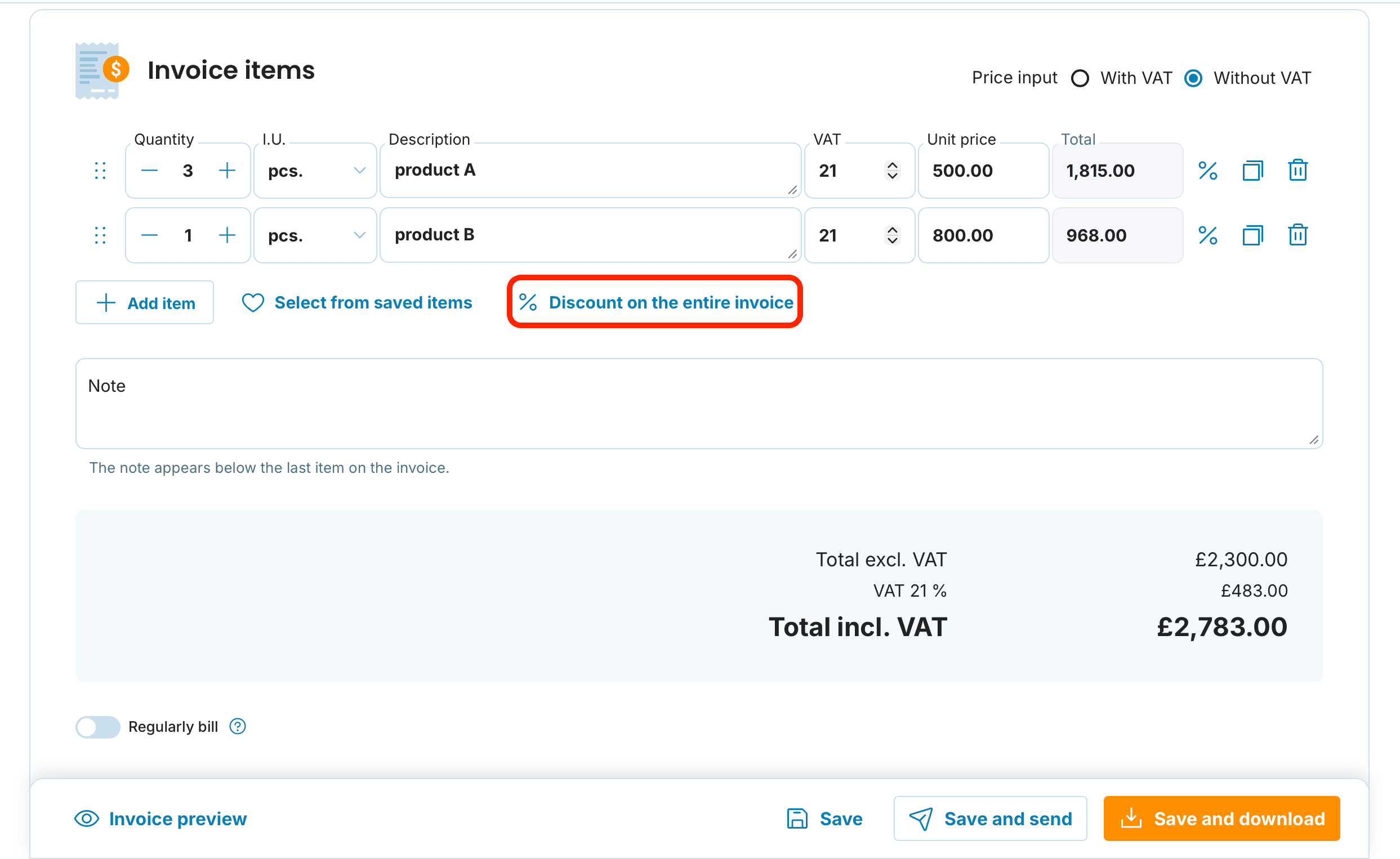
-
Enter the discount amount and type
After clicking the percentage icon, a new window will open where you can enter the discount amount. In the Discount Type section, choose whether the discount should be expressed as a percentage (%) or as a fixed amount.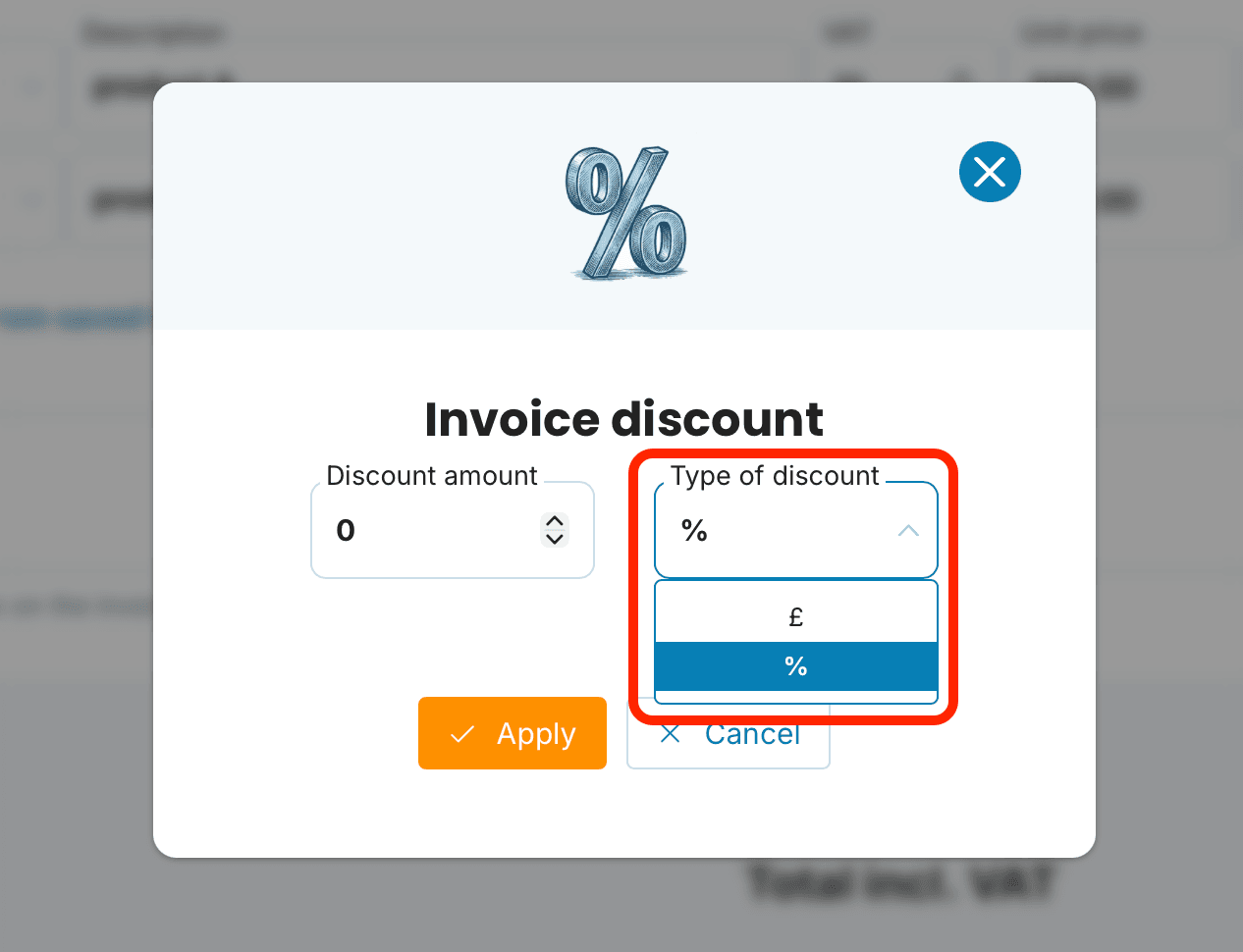
Confirm the discount
After entering the discount amount and selecting its type, click the Apply button. The discount will automatically be applied to the entire invoice and the total amount will be adjusted.-
Edit or remove the discount
If you want to modify the discount later, click the pencil icon next to the discount and make the necessary changes. To remove the discount, click the trash icon.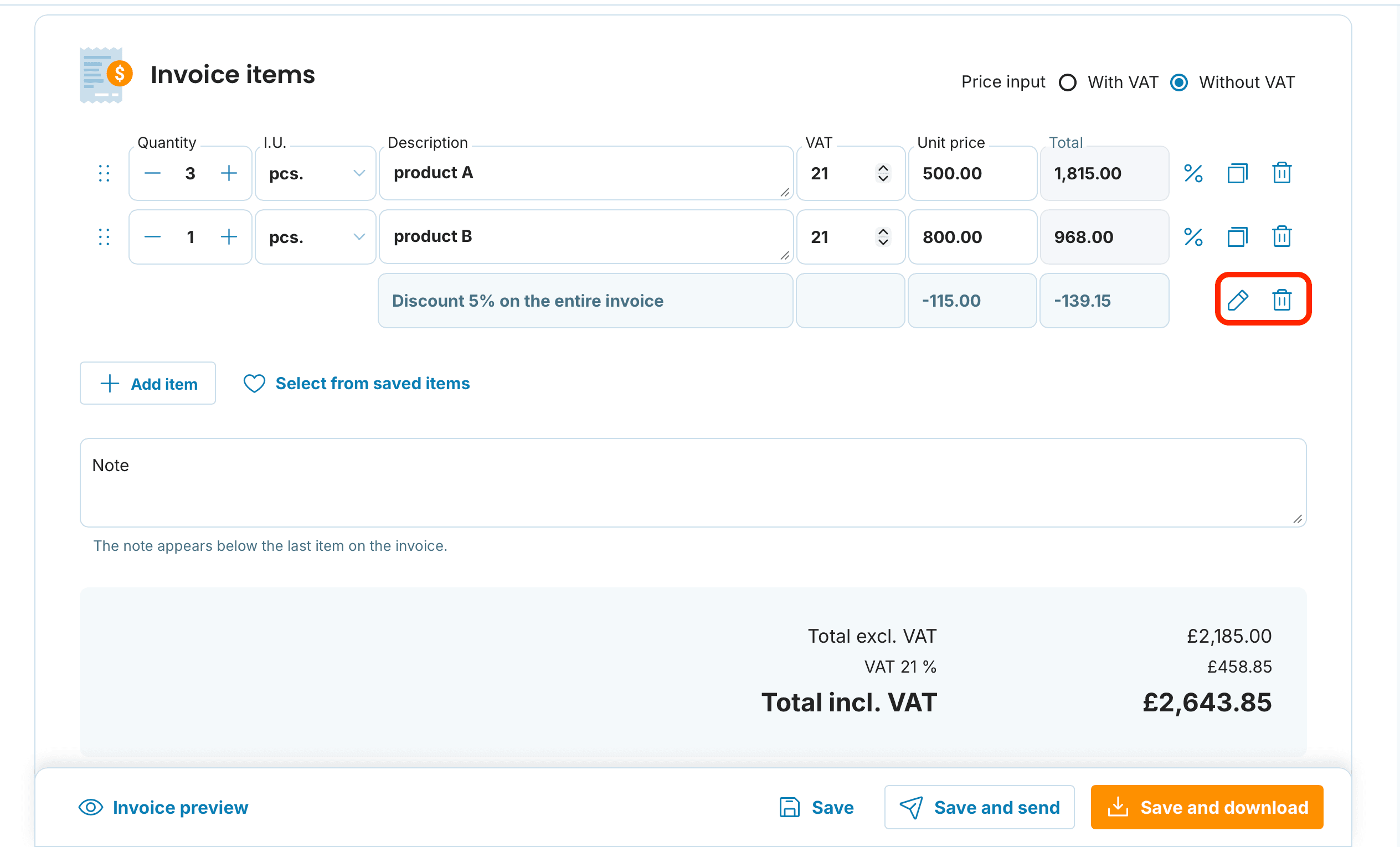

Combining Discounts
In MyInvoiceOnline, you can combine line item discounts with a discount applied to the entire invoice. In such cases, the system first applies the discounts to individual items and then applies the discount to the total invoice amount. The final price is always calculated automatically by the system. You can therefore enter both a line item discount and a full invoice discount.
Thanks to this feature, you can easily adapt your invoicing to any business situation!