How to create an invoice from an advance invoice

What is the connection between a proforma invoice and a tax document
An advance invoice is not a tax document – it serves only as a request for a deposit payment. Only after it has been paid, you issue the final invoice (tax document), which deducts the deposit and settles the remaining payment.
In MyInvoiceOnline, both documents are linked. You create the final invoice directly from the proforma invoice details – the app pre-fills the items, notes the proforma invoice number, and deducts the paid deposit from the total amount.

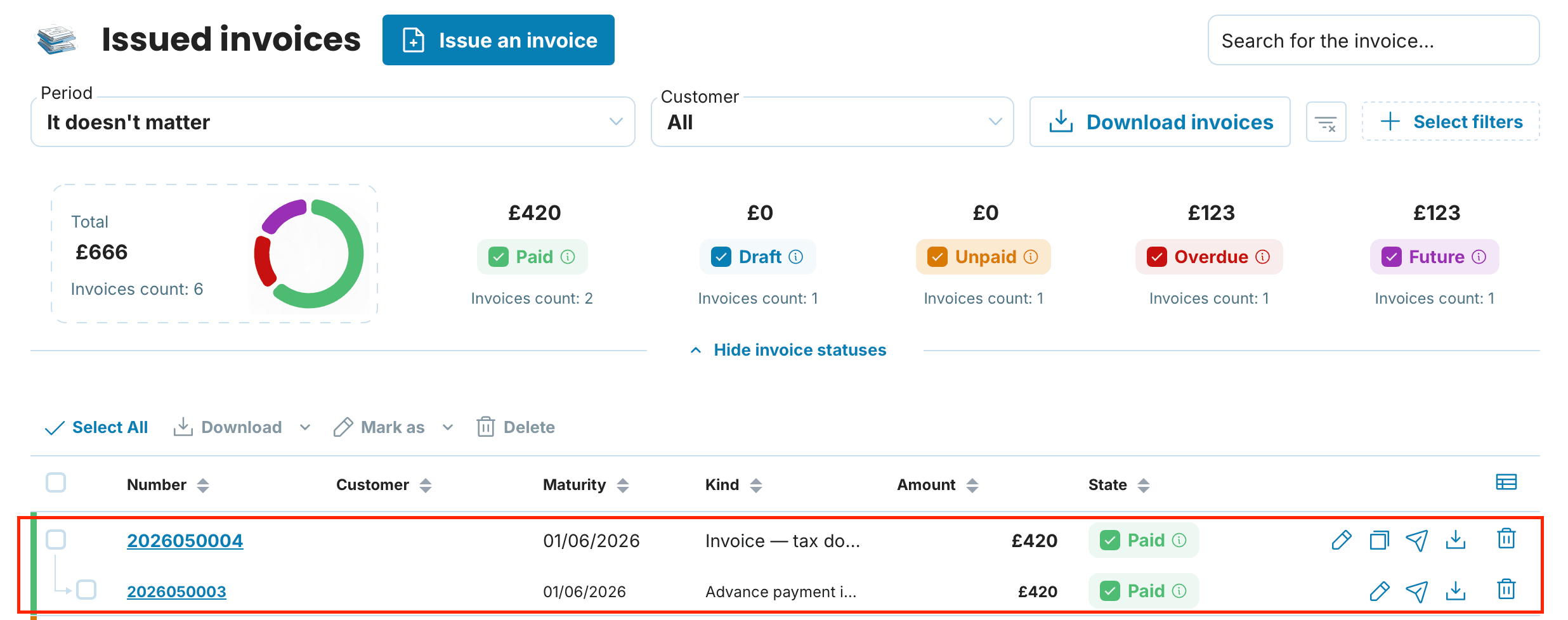
The linking also applies in the invoice list – you will see the proforma and final invoice together as one unit. In the details of each document, you'll find a link to the other in the right column.
1. Issue an advance invoice
Issue an advance invoice just like any other invoice – click on the Issue an Invoice button and select Advance Invoice as the document type. Fill in the customer, items, and due date. Once the deposit is paid, mark the proforma invoice as Paid – and you can move on to the next step.
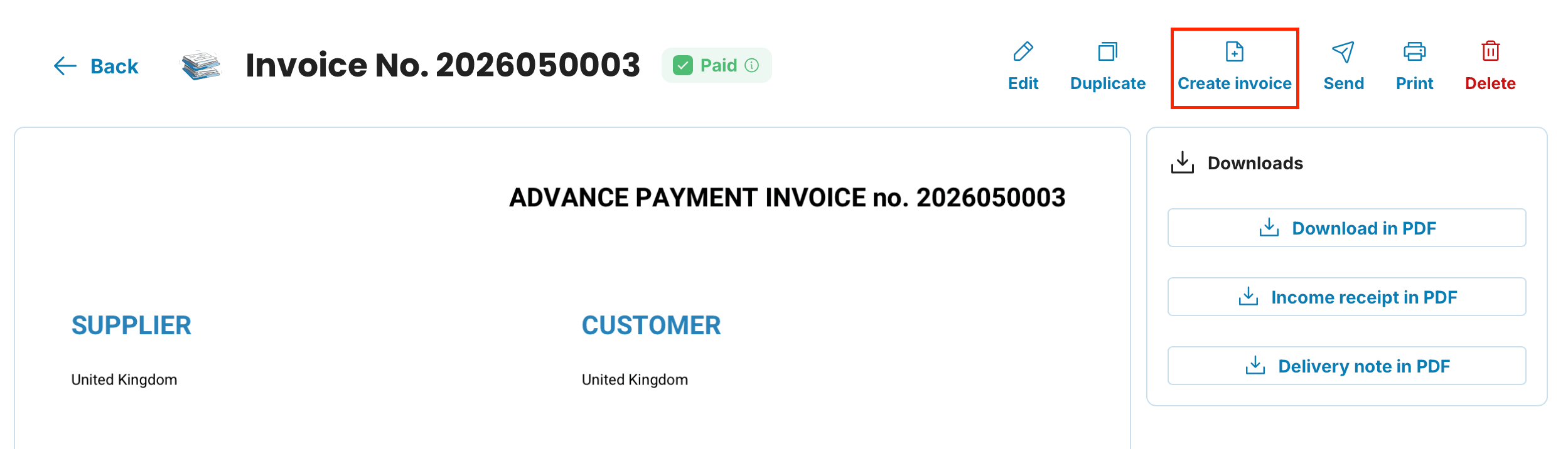
2. Open the advance invoice details and click 'Create Invoice'
In the Issued Invoices section, click on the advance invoice number to open its details. At the top, you'll find the Create Invoice button. Clicking it will automatically open a form for the new invoice with pre-filled information.
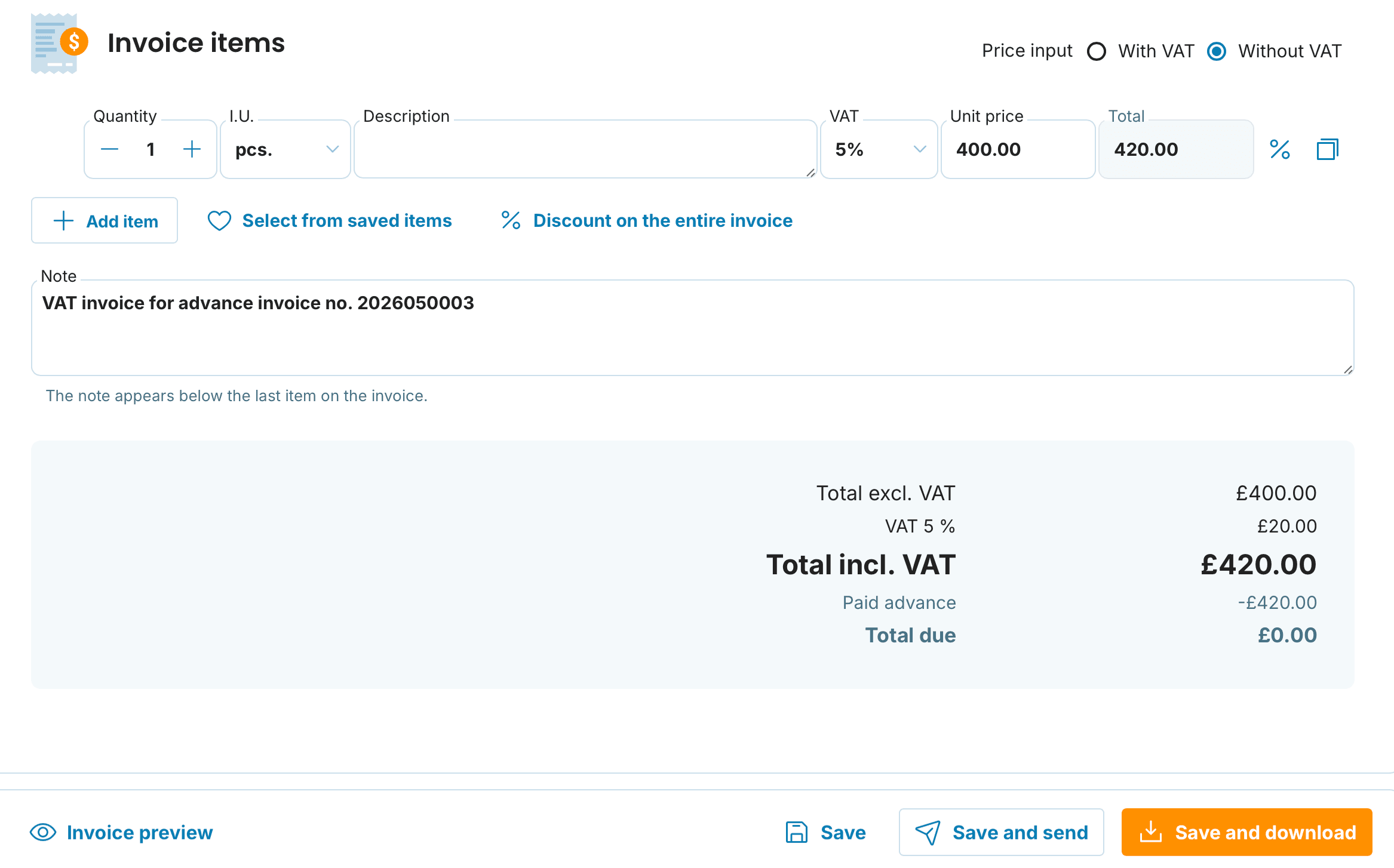
3. Check the pre-filled tax document
The app automatically prepares the invoice with these details:
Document Type: Invoice with VAT
Customer and all other details: transferred from the proforma invoice
Items: original item from the deposit + a line deducting the deposit
Note: automatically filled as “Tax document for proforma invoice no. [number]”
If you need to add more items (for example, additional work), click on Add Item and complete the details.
At the bottom of the form, you'll see a clear summary:
Total incl. VAT – the total value of the supply
Paid advance – the amount deducted from the advance invoice
Total due – the remaining balance (or 0 if the deposit covered everything)
Once everything is checked, click on Save and Download, Save and Send, or Save.
How linked documents appear in the list
After issuing, you will find both documents in the Issued Invoices section together – the final invoice is shown as the main, with the proforma invoice below as a linked document.
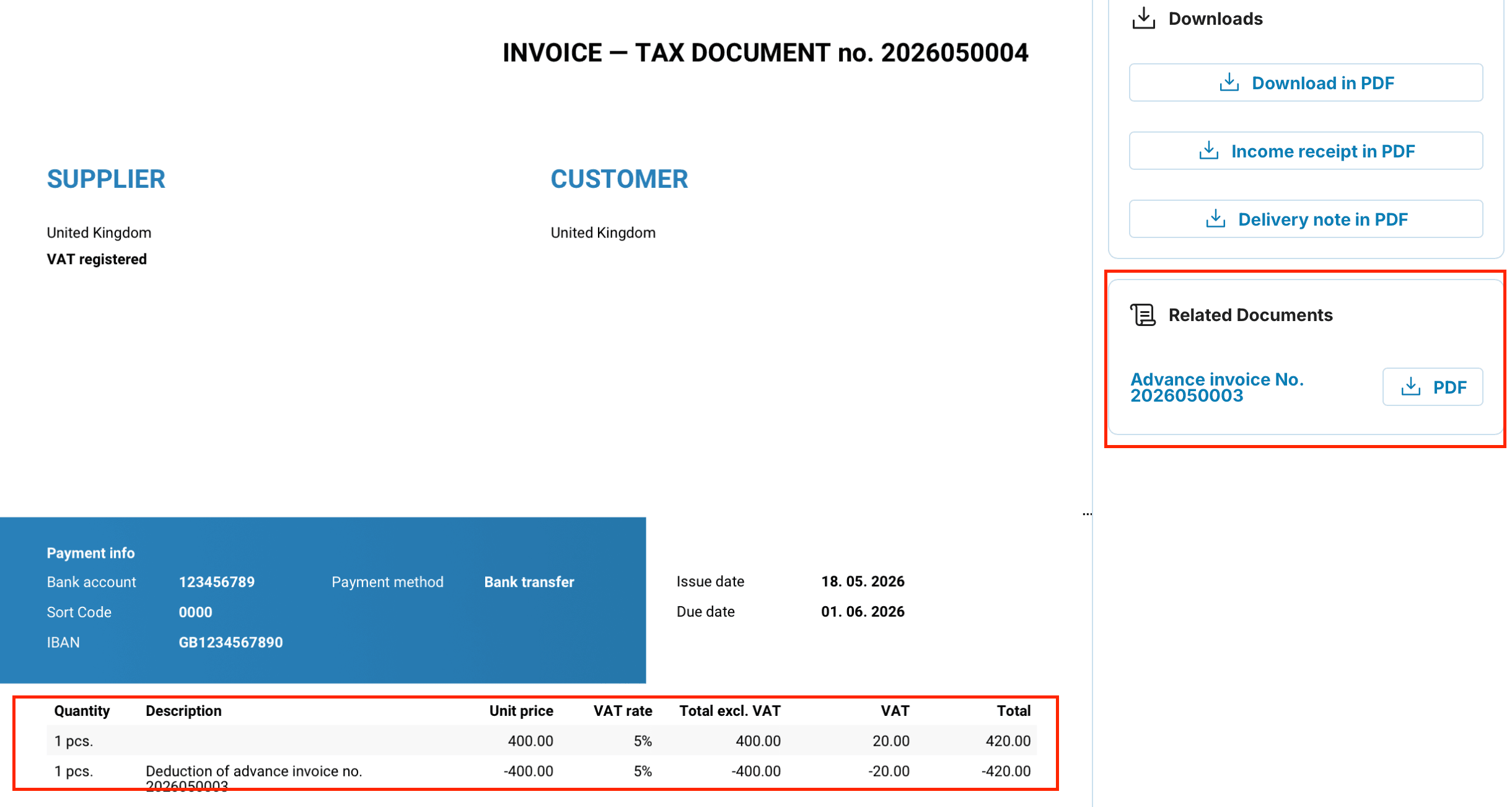
Clicking on the final invoice detail will show the Related Documents section in the right column, with a link to the original proforma invoice – and vice versa.
FAQs
Can I create multiple invoices from a single deposit invoice?
No, only one tax document can be created per deposit invoice. If you need to invoice several services separately, please issue an individual deposit invoice for each one.
What if the deposit only covered part of the total amount?
In that case, the deposit will appear in the calculation as a deducted amount, and the "Total Due" will show the remaining balance. The customer will then only pay the difference.
Do I need to mark the deposit invoice as paid before creating the final invoice?
Marking it as paid is not mandatory, but we strongly recommend doing so. It makes it much easier to keep track of payment statuses, and ensures both documents reflect the correct state.
Will the link between the documents also appear on the invoice the customer receives?
Yes. The final tax document will automatically include a line item showing the deposit deduction, along with the deposit invoice number — giving the customer a clear overview of what was paid in advance and what, if anything, remains outstanding.