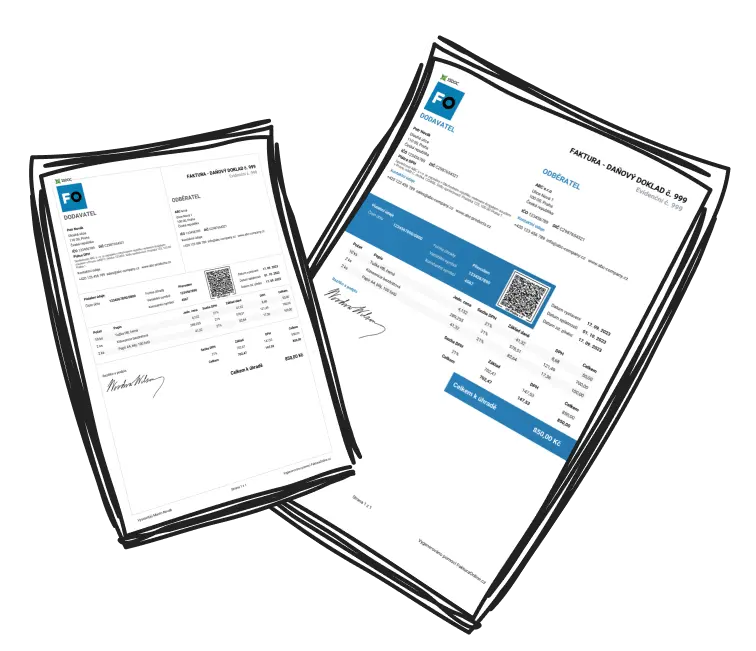
How to generate invoices easily with MyInvoiceOnline.co.uk
Where to Issue an Invoice?
After logging into your account on MyInvoiceOnline.co.uk, click the Issue an Invoice button in the top right corner. This feature is available for both MINI and PREMIUM plan users.
The invoice creation form is clearly divided into four sections:
1. Invoice
Here you set the key parameters of the invoice:
Type of invoice (regular, advance, etc.)
Invoice number and reference number
Issue date and due date
Supply date
Payment method
IBAN, SWIFT
Issuer

2. Settings
💡 This section may be hidden - click View setting to expand.
Customize the appearance and details of your invoice:

3. Supplier and Customer
Fill in your details and your customer's:
Company name
Address
VAT ID / Company ID
Additional contact information

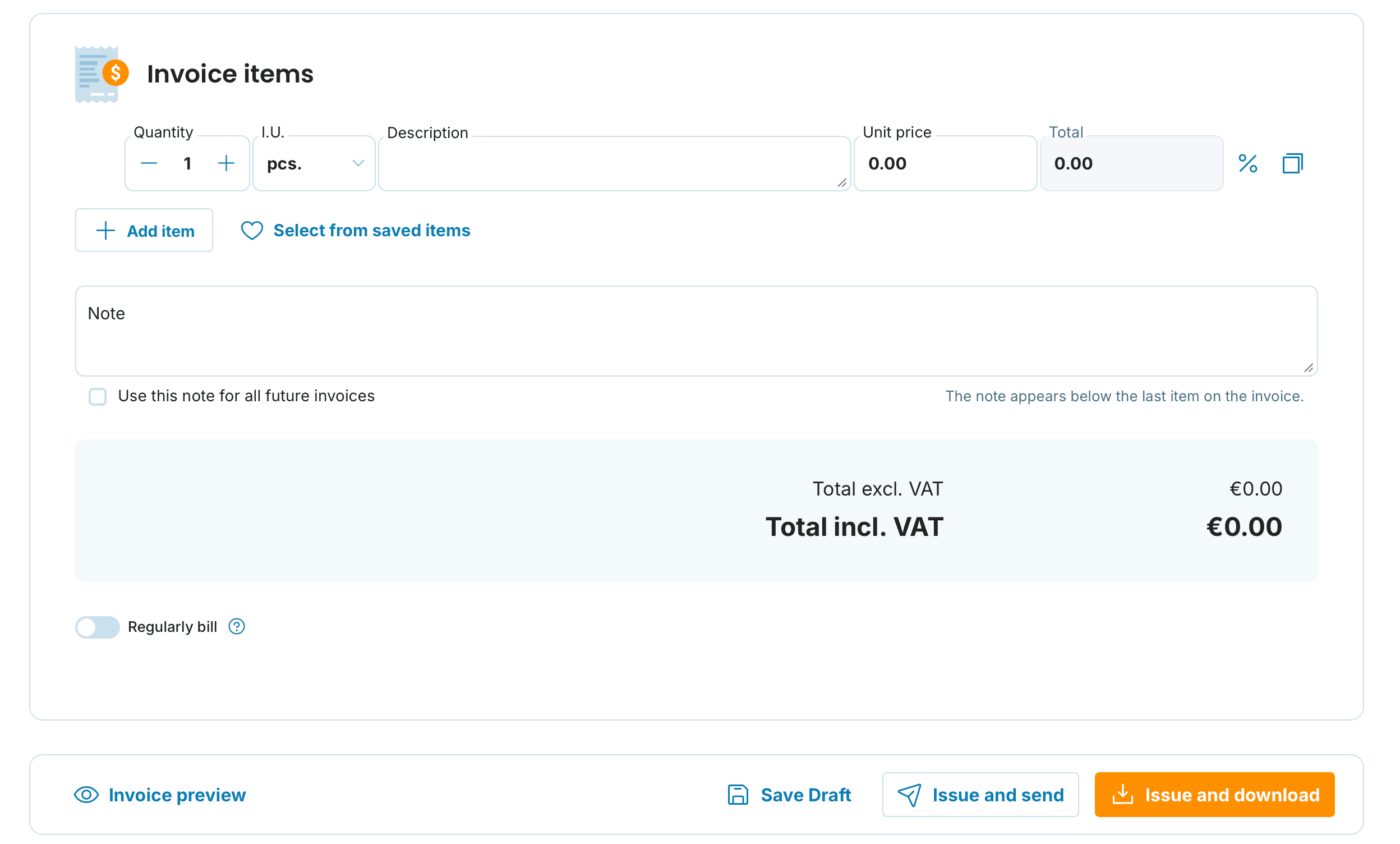
4. Invoice items
In the final section, add the specific goods or services:
Item name (with autocomplete from history)
Unit (pcs, hours, packages, etc.)
Quantity and unit price
Automatic total amount calculation
You may also add a note that will appear below the final item on the invoice. To save this note for future invoices, simply check the box Use this note for all future invoices

You can save items for reuse in future invoices, saving time and making invoicing even easier.
After entering all details, you can:
📩 Send the invoice via email directly from the system
💾 Save it as a PDF or edit it later
📊 Track its status (paid / unpaid / overdue)
If you have any questions, contact us at [email protected]. We’re here to help you! ✨