Invoice History: How to Track Whether Your Customer Received and Opened It

Where to find a specific invoice's history
Open the Issued Invoices section and click the invoice number to open it.
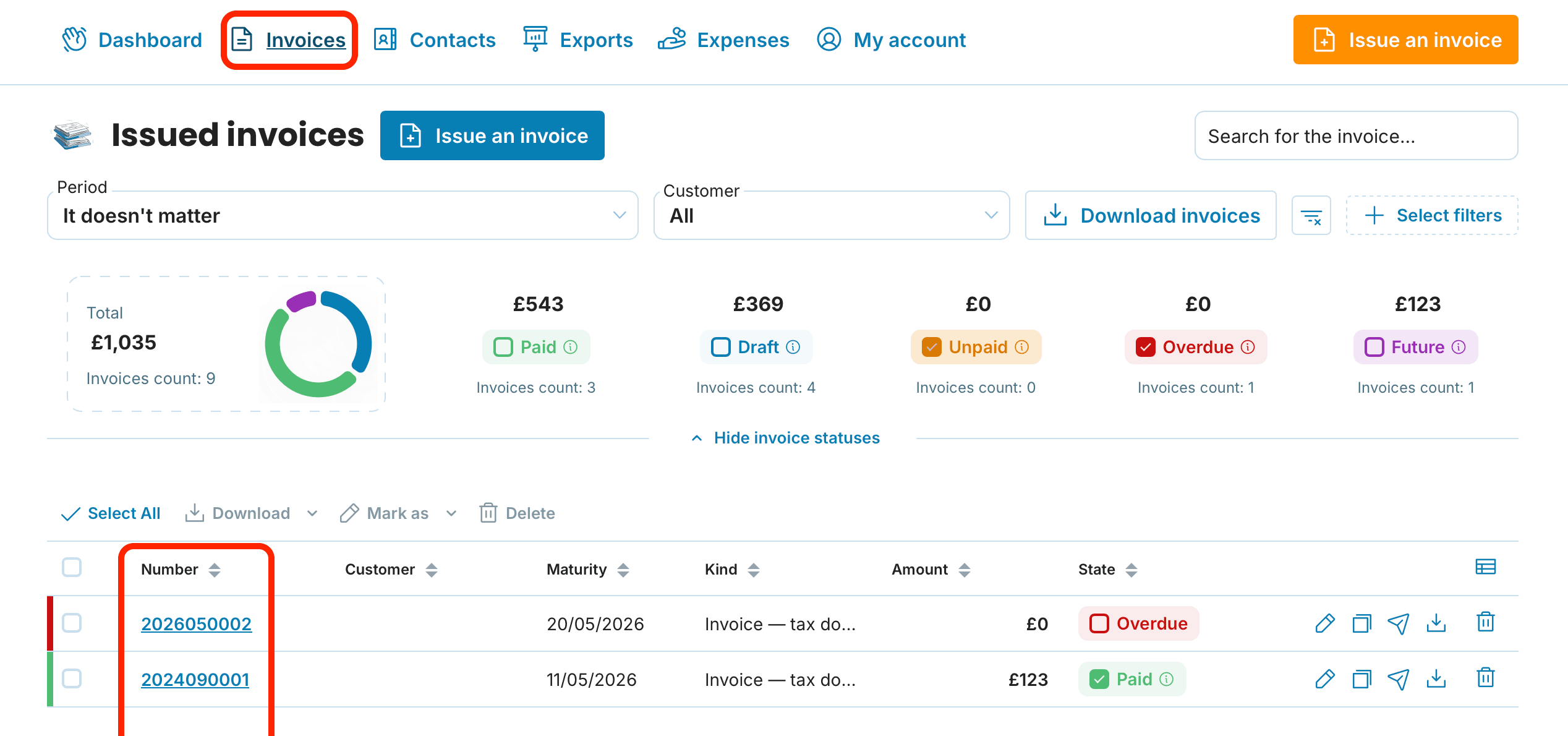
In the top toolbar, open the History column to see the date and time the invoice was sent, its delivery, and when the recipient viewed it.
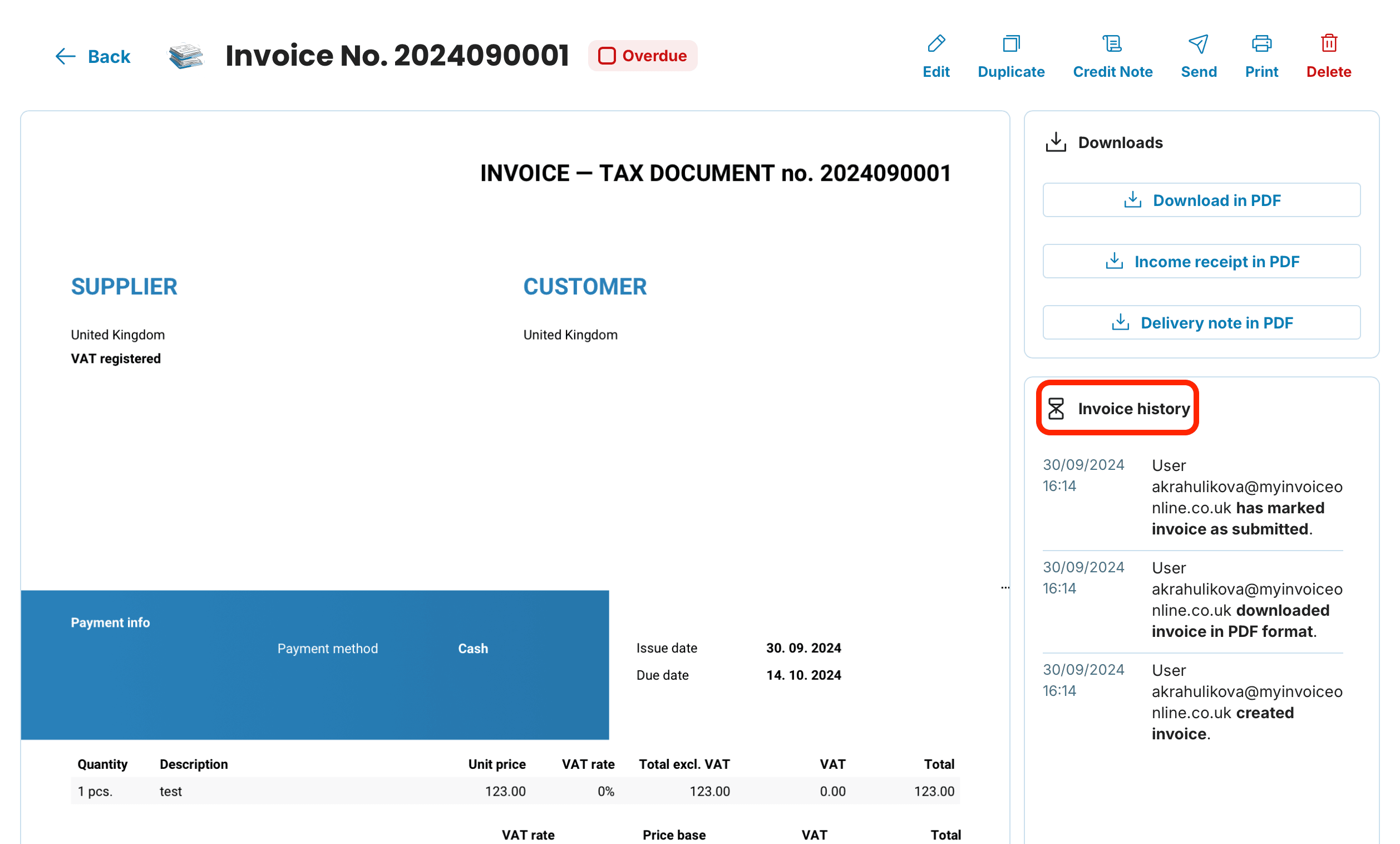
This gives you a clear overview of what happened to the invoice since you issued it, without digging through your email inbox.
What the invoice history shows
The record for each invoice includes:
when you issued the invoice,
when and to which email you sent it,
whether your customer received it (delivery),
whether they opened it,
any changes you made to the invoice.

Working with an issued invoice — sending it straight from the app and tracking its history — is part of the Premium plan and also works during your free trial. On the Mini plan, the Issued Invoices list is for reference only.
How to send an invoice by email from the app
There's no need to download and forward invoices manually. When you finish the invoice, click Issue and Send — your customer receives the invoice as a PDF, and the history immediately shows whether they received and opened it.
You can also resend an invoice you've already issued. In the Issued Invoices section, click the email icon next to it.
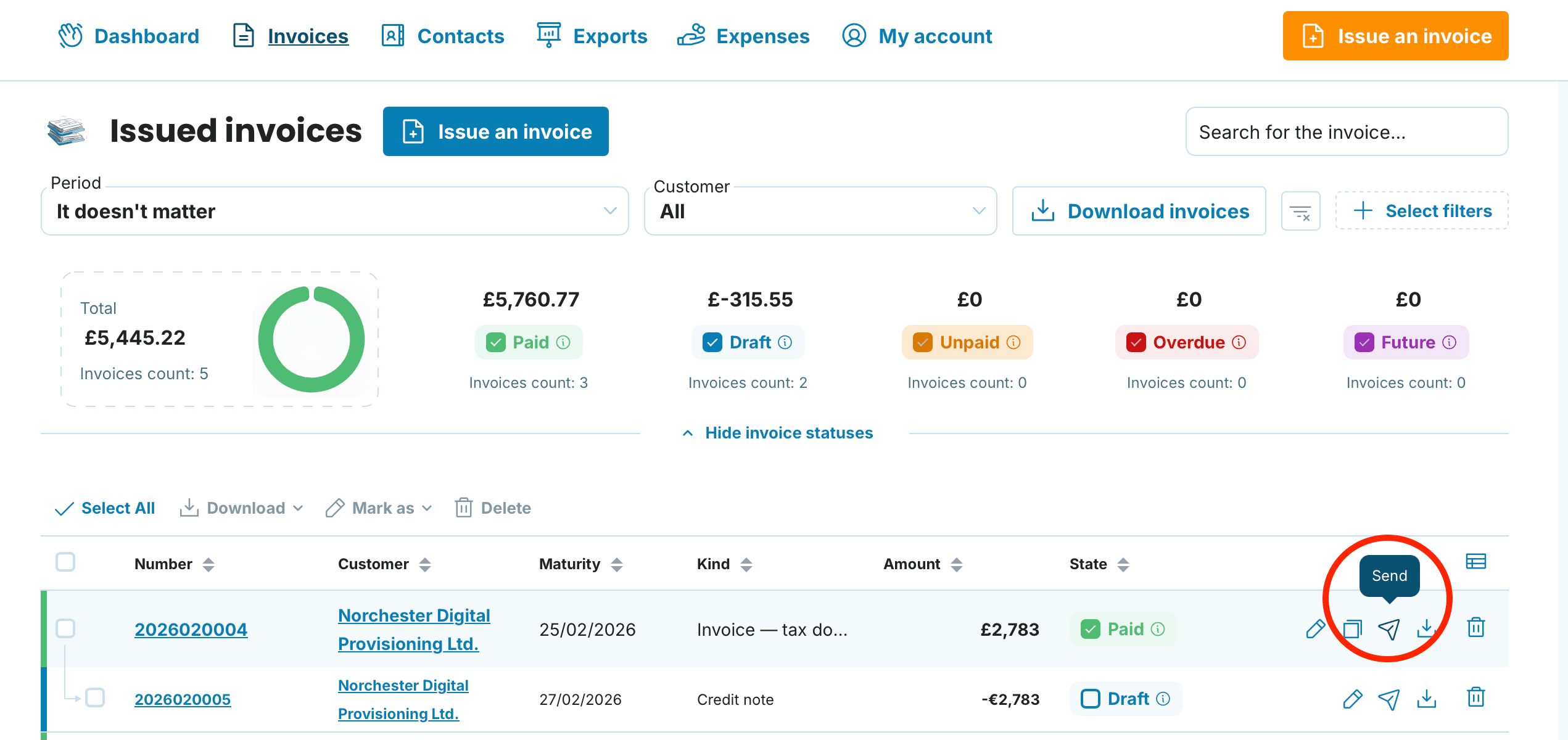

Set up your own email templates — for example a thank-you after payment or a reminder once an invoice is overdue. Your sent invoices will look consistent and professional.
Keeping an overview of your account
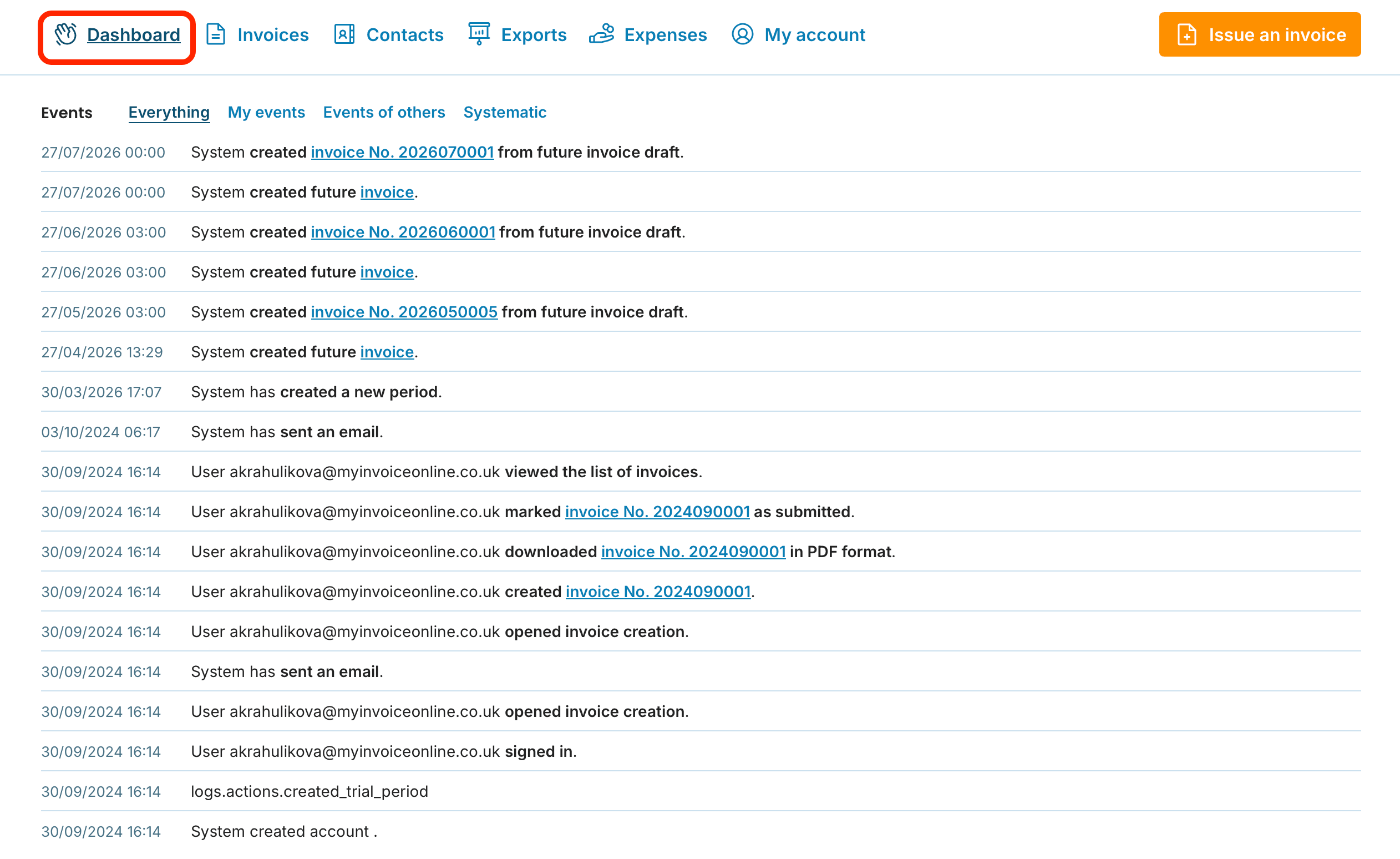
You don't only track history on individual invoices. After you log in, the Dashboard on the main page gives you a summary of what's been happening in your account — which invoices you've issued and who you sent them to. It's handy when you're not sure whether you sent a document correctly.

Want to get the most out of the app right from the start? Read our tips for new users and save time on your everyday invoicing.
Where do I find a specific invoice's history?
In the Issued Invoices section, click the invoice number to open it. Then open the History column in the top toolbar.
How do I know whether my customer opened the invoice?
The invoice history shows whether your customer received and opened it — for invoices sent by email straight from the app.
Do I have to download an invoice to send it?
No. Click Issue and Send when you finish the invoice. To resend an invoice you've already issued, click the email icon next to it in the Issued Invoices section.
Does invoice history work on the Mini plan?
Tracking history and sending from the app are part of the Premium plan and the free trial. On the Mini plan, the Issued Invoices list is for reference only.
Where can I see an overview of all my invoices?
In the Issued Invoices section, where you can see each invoice's status and filter by customer, period, or document type.
