Issuing a credit note from an invoice

Share on:
Issuing a credit note from an invoice
Need to correct an issued invoice? With MyInvoiceOnline, you can now easily create a credit note directly from the original invoice. Whether you need to correct the entire invoice or just part of it, thanks to the new feature, you can do it quickly, clearly and without errors.

A corrective tax document is used to fix errors on an invoice that has already been issued and recorded, without the need to delete the original document. It is issued, for example, when an incorrect amount, VAT rate, or date is stated, or when the terms of the transaction change afterward—typically due to returned goods, a discount, or a complaint. In this guide, we will simply explain how to issue a corrective tax document in MyInvoiceOnline.

Where can I find the option to issue a credit note and how to do it?

  1. Go to the Invoices section

  2. Click on the specific VAT invoice you want to amend

  3. Upon opening it, you'll find the Credit Note button on the top right-hand side
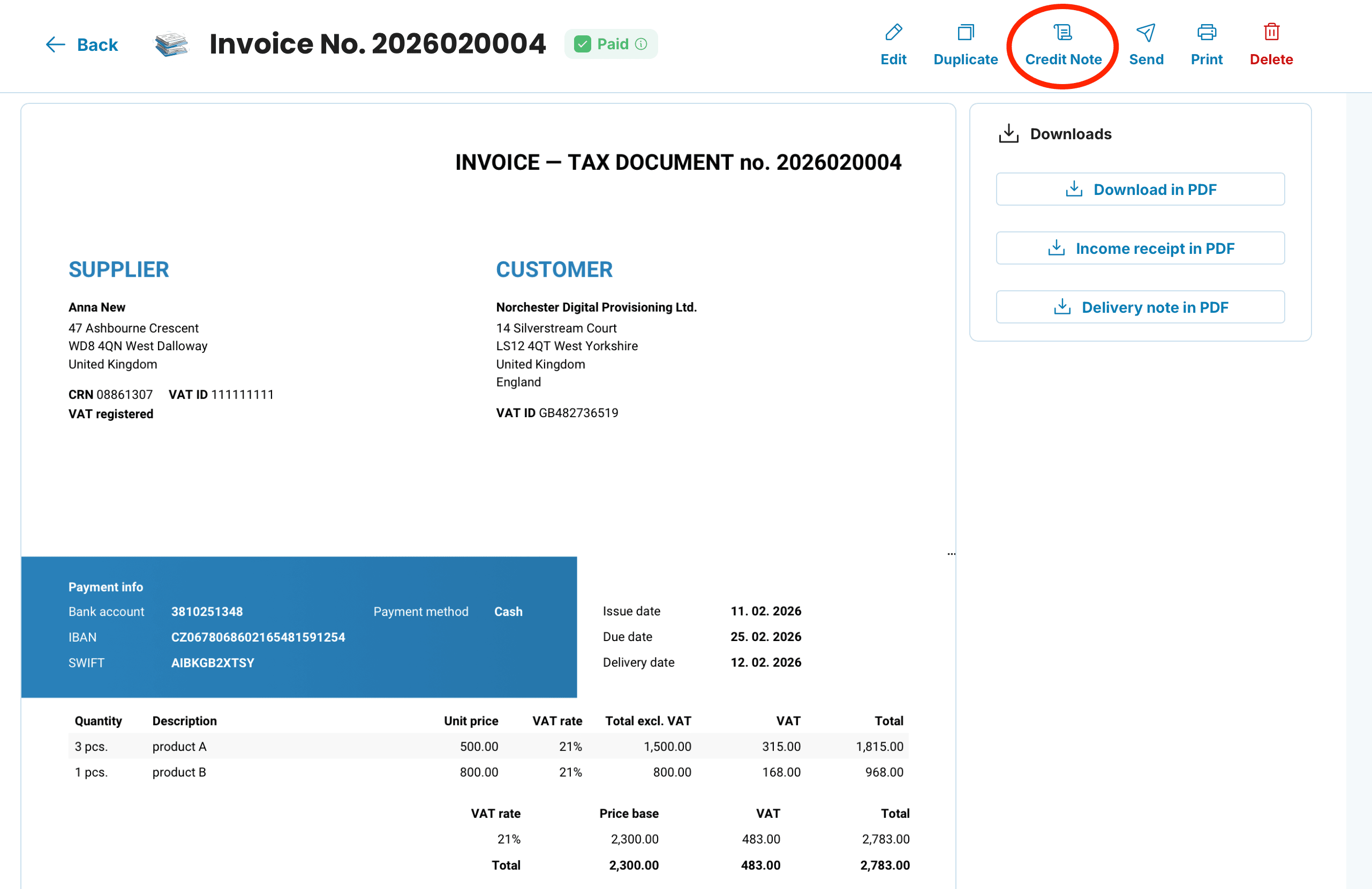
Credit note preview
  1. Clicking on the Credit Note button opens a pre-filled form titled Creation of a correction document

  2. In the Invoice section, fill in the Reason for issue – this field is mandatory, and the document cannot be saved without it
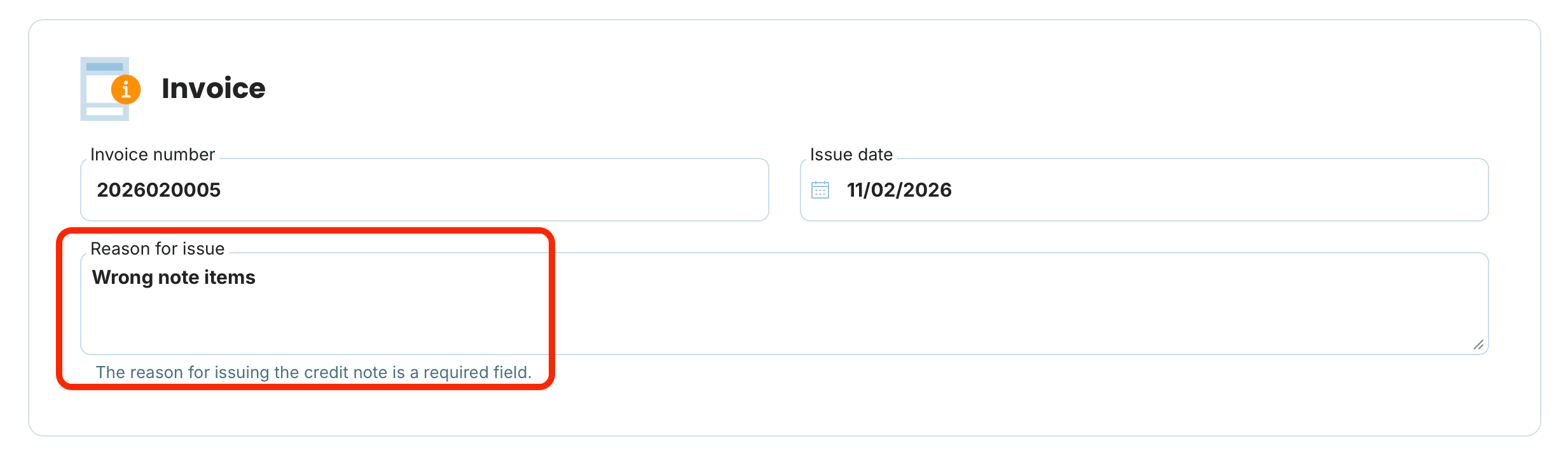
    Reason for issue preview
  3. If you are correcting the entire invoice, leave everything as it is. If you only need to amend specific items or amounts, you can adjust them manually. Items will display as negative values
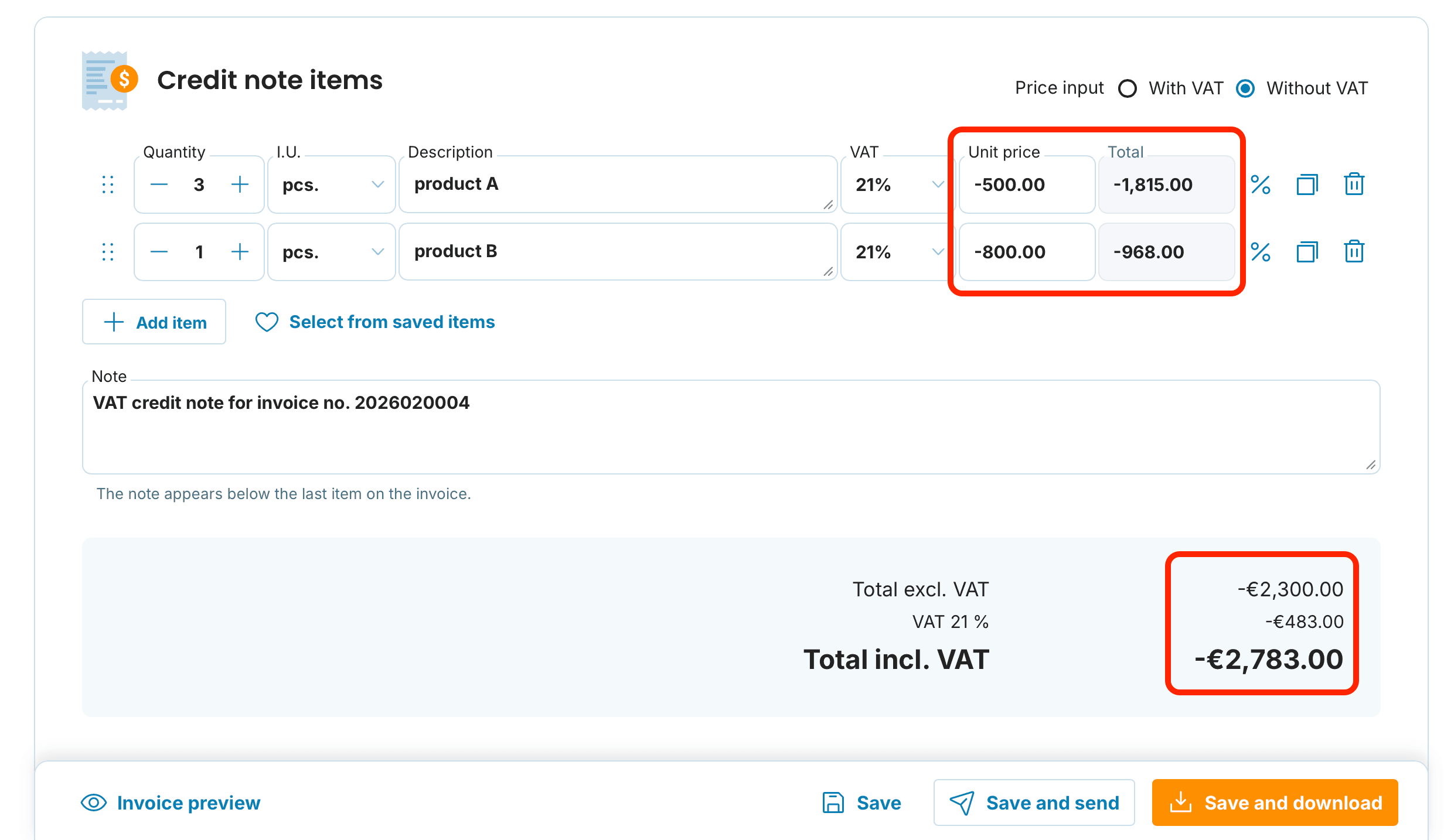
Credit note items preview

  1. Note: will be automatically pre-filled as Credit note for invoice no. XY (the number will be filled in automatically)

  1. Then simply choose whether you wish to:

    Save, Save and send, Save and download

Where can I find the issued credit note?

  1. In the Invoices Issued overview, the new document will appear as linked – you’ll notice its association with the original invoice through graphic differentiation

graphic structure preview
  1. When you click on the credit note, you will see the invoice it relates to in the Related Documents section on the right-hand side, and vice versa (in the original invoice you will see the credit note)
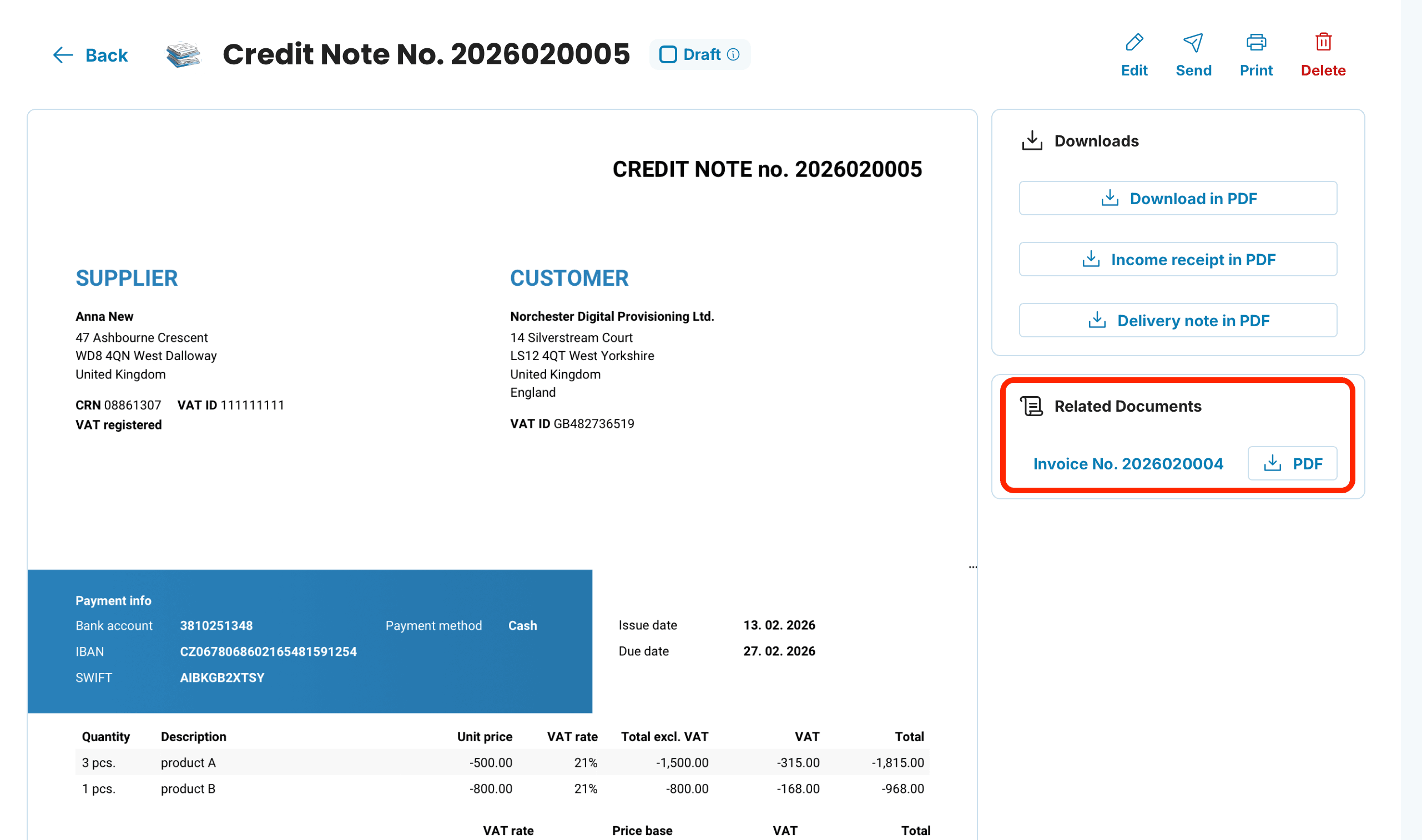
Related documents preview

No more manual rewriting – items are loaded automatically, the document is issued in full compliance with legislation, quickly, simply, and without errors. Moreover, you can choose whether to amend the entire invoice or only part of it – exactly as you need.

Use the template to quickly create an invoice
Homepage

Related articles

How to Amend an Invoice: Fixing Errors With a Credit Note
28/08/2026

Spotted a mistake on an invoice? How you fix it depends on one thing: whether it's still sitting in your account or your customer already has it. While it's a draft, a change takes seconds. Once it's been sent, you'll usually put things right with a credit note rather than editing the original.

Invoice History: How to Track Whether Your Customer Received and Opened It
07/08/2026

You've sent an invoice but aren't sure whether your customer received and opened it? In MyInvoiceOnline, every invoice keeps a history of what happened to it. This guide shows where to find it and how to send invoices by email straight from the app.

Overdue Invoice: What to Do When a Client Hasn't Paid
05/08/2026

When an invoice is overdue, UK law is on your side: on business-to-business invoices you can claim statutory interest of 8% above the Bank of England base rate, plus fixed compensation of £40–£100 — automatically. Here's how to chase an overdue invoice, and how to track its status and send reminders inside MyInvoiceOnline.

How to create an invoice from an advance invoice
18/05/2026

Have you issued an advance invoice and your customer has paid the deposit? You can create the corresponding tax document in MyInvoiceOnline with a single click — the application will automatically pre-fill the line items, deduct the deposit, and link both documents together.